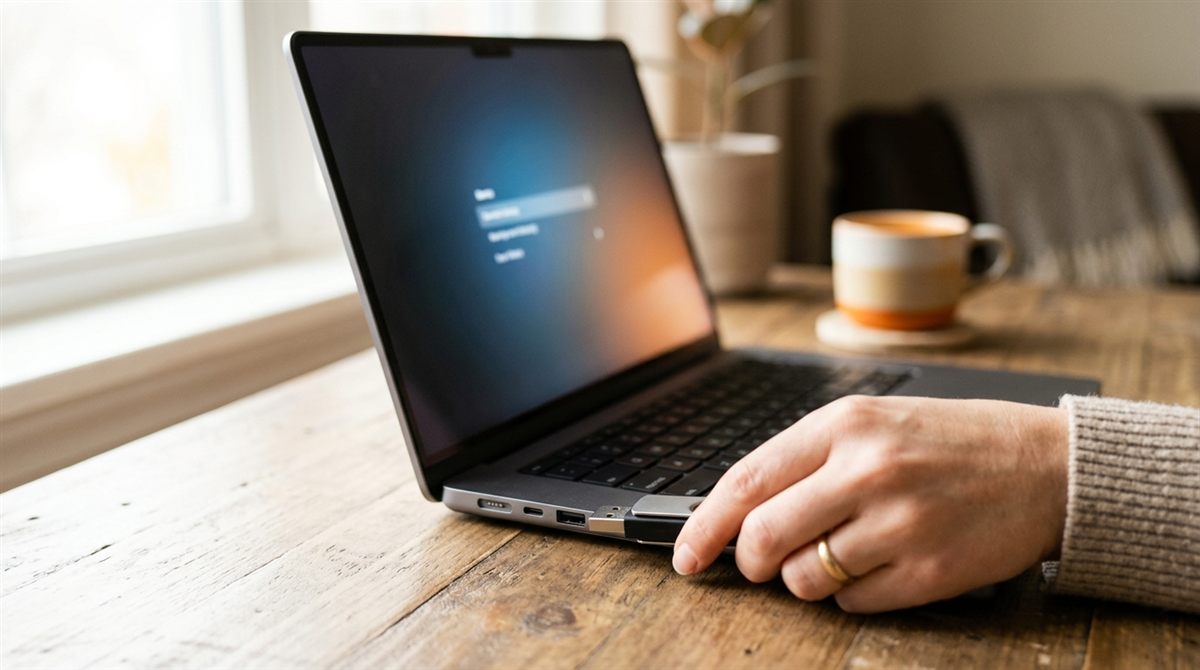
Booting from a USB drive lets you install or reinstall Windows, try Linux, or run repair and recovery tools. There are two steps: create a bootable USB, then tell the laptop to start from it.
Step 1: Create a bootable USB
You’ll need a USB drive of at least 8GB (16GB+ for some Linux distributions). Everything on it will be erased.
- Windows 11: download Microsoft’s Media Creation Tool from microsoft.com/software-download/windows11, run it, choose “USB flash drive”, and follow the prompts.
- Linux or other ISO files: use Rufus (Windows) or balenaEtcher (Windows/Mac/Linux). Select the ISO, select the USB drive, and click Start/Flash.
- Several ISOs on one stick: Ventoy lets you copy multiple ISO files onto one USB and choose between them at boot.
Step 2: Boot from the USB
Method A: From inside Windows (easiest, works on any brand)
- Plug in the USB drive.
- Go to Settings → System → Recovery and click Restart now next to Advanced startup.
- Choose Use a device, then select your USB drive.
Shortcut: hold Shift while clicking Restart in the Start menu power options.
Method B: The boot menu key
Shut down completely, plug in the USB, then press the power button and immediately tap the boot menu key repeatedly:
| Brand | Boot menu key | BIOS/UEFI setup key |
|---|---|---|
| Dell | F12 | F2 |
| HP | Esc, then F9 | Esc, then F10 |
| Lenovo (ThinkPad, IdeaPad, Legion) | F12 (or Fn+F12; some IdeaPads have a pinhole “Novo” button) | F1 (ThinkPad) / F2 |
| ASUS | Esc (F8 on some gaming models) | F2 or Del |
| Acer | F12 (enable “F12 Boot Menu” in BIOS first) | F2 |
| MSI | F11 | Del |
| Samsung | F2 or F10 | F2 |
| Microsoft Surface | Hold Volume Down while pressing power | Hold Volume Up while pressing power |
Choose the entry with your USB drive’s name or “UEFI: USB”.
Mac (Apple silicon)
Shut down, plug in the drive, then press and hold the power button until “Loading startup options” appears, and select the drive. Apple silicon Macs can only boot macOS installers this way, not Windows or most Linux USBs.
If the laptop won’t boot from the USB
- Remake the USB with the Media Creation Tool or Rufus. A file simply copied onto the drive won’t boot.
- Try a different port, ideally a USB-A port or one directly on the laptop rather than a hub.
- Secure Boot: Windows and major Linux distributions (Ubuntu, Fedora, Mint) boot fine with Secure Boot on. Some older tools need it temporarily disabled in the BIOS. Turn it back on afterwards.
- Fast Startup / Fast Boot can skip the boot menu key. Use Method A instead, or disable Fast Boot in the BIOS.
- BitLocker: changing boot settings may trigger a recovery key prompt. Have your key ready from account.microsoft.com/devices/recoverykey.
Next: clean install Windows 11 · dual-boot Linux and Windows