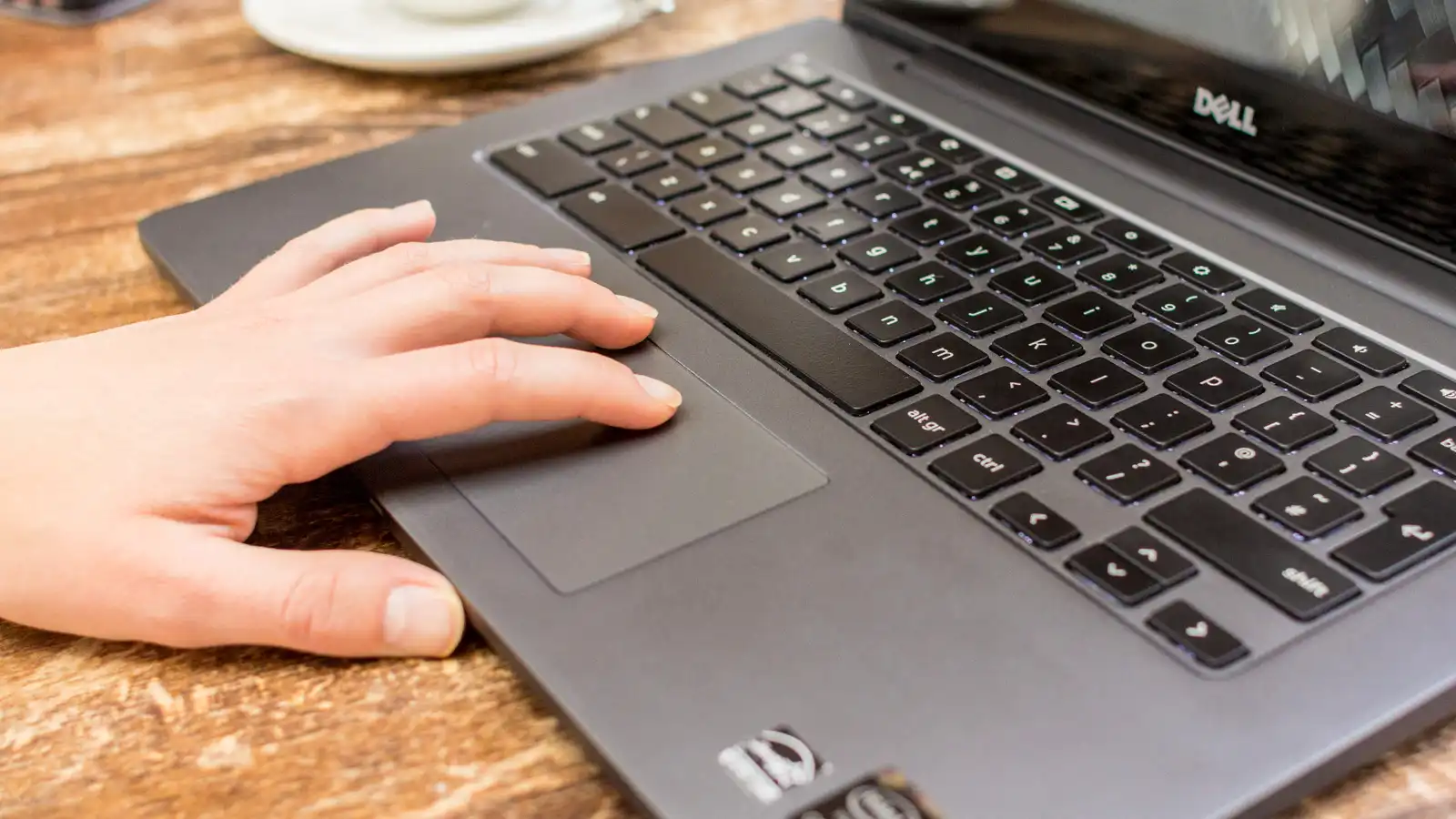
Step-by-Step Guide to Enabling Your Laptop Touchpad
Navigating your laptop with a disabled touchpad can be a frustrating experience, especially when you don’t have a mouse handy. Whether your touchpad has been accidentally disabled or you need to re-enable it after some troubleshooting, this guide will walk you through the steps to get your laptop touchpad up and running again. With easy-to-follow instructions, we’ll address common issues and provide you with solutions to restore your touchpad functionality.
What is a Laptop Touchpad?
A laptop touchpad is a built-in pointing device commonly found on most portable computers. It allows users to navigate the operating system and control the cursor on the screen using finger movements. Modern touchpads support a variety of gestures, making it an essential tool for enhancing your productivity and overall user experience.
How to Know if Your Touchpad is Disabled
Before diving into the steps to enable your touchpad, it’s crucial to determine whether it’s actually disabled. Some common signs include:
- The cursor does not move when you slide your finger across the touchpad.
- Touchpad gestures like pinch-to-zoom or two-finger scroll do not work.
- The touchpad icon may appear as disabled in your system settings.
Step 1: Using Keyboard Shortcuts
Most laptops can enable or disable the touchpad via a keyboard shortcut. This is often the quickest way to toggle the touchpad’s functionality.
- Look for a function key (often labeled as “Fn”) on your keyboard.
- Identify the function key (F1-F12) that has an icon resembling a touchpad. This icon may vary depending on the laptop brand.
- Press the “Fn” key and the corresponding function key simultaneously to enable the touchpad.
If pressing the keyboard shortcuts does not work, proceed to the next steps.
Step 2: Check Your System Settings
For Windows Users:
- Open the Control Panel: Hit the Windows key, type “Control Panel,” and press Enter.
- Navigate to ‘Mouse’ Settings: Click on ‘Hardware and Sound’ and then ‘Mouse’ under ‘Devices and Printers’.
- Adjust Touchpad Settings: In the Mouse Properties window, switch to the ‘Device Settings’ tab, click on your touchpad in the list (it might be named as Synaptics or ELAN), and click ‘Enable’.
For macOS Users:
- Open System Preferences: Click on the Apple logo at the top left corner of your screen and select ‘System Preferences’.
- Go to Trackpad Settings: Click on ‘Trackpad’.
- Check and Adjust Settings: Ensure the ‘Touchpad’ is enabled, and adjust the settings according to your preference.
Step 3: Update or Reinstall Touchpad Drivers
Outdated or corrupted drivers can cause your touchpad to malfunction. Updating or reinstalling the drivers may resolve the issue.
For Windows Users:
- Open Device Manager: Press Windows Key + X and select ‘Device Manager’.
- Find Mice and Other Pointing Devices: Expand this section, right-click on your touchpad, and select ‘Update driver’.
- Choose How to Update: You can search automatically for updated driver software or browse your computer for driver software if you have downloaded the drivers from the manufacturer’s website.
For macOS Users:
Generally, macOS updates its drivers automatically. However, you can ensure that you have the latest software by going to the ‘Software Update’ section under ‘System Preferences’.
Common Questions about Enabling Laptop Touchpads
What if my touchpad is still not working?
If you’ve tried all the above steps, but your touchpad is still not reacting, consider checking if there is any physical damage or consult with a professional technician.
Can external software affect touchpad functionality?
Yes, certain third-party software can alter or interfere with your touchpad settings. It’s advisable to perform a clean boot or disable recently added applications to see if that resolves the issue.
How can I disable the touchpad when using an external mouse?
This can usually be done through the touchpad settings in the Control Panel or System Preferences. There may be an option to disable the touchpad when a mouse is connected.
By following these steps, you can troubleshoot and enable your laptop touchpad efficiently. Remember, the exact steps can vary slightly depending on your laptop’s make and model as well as your operating system. Ultimately, enabling your touchpad enhances your capability to navigate your laptop, benefiting both your productivity and the overall user experience.