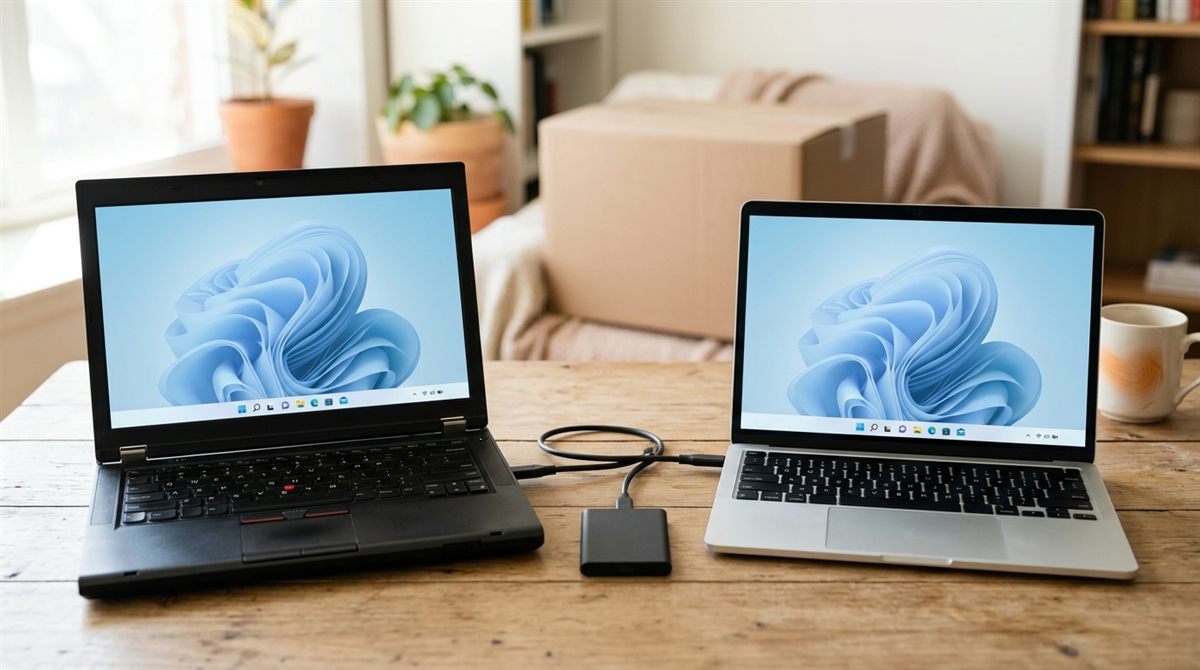
Getting a new laptop, or need to move files between two? Here are the best ways to transfer files laptop to laptop, from the built-in Windows transfer tool to a simple USB drive, plus how to move from Windows to Mac.
Quick fixes to try first
- New Windows 11 laptop? Use the Windows Backup app’s transfer option during setup (below).
- Lots of files? Copy them to an external drive or portable SSD. It’s simple and fast.
- Already use OneDrive or Google Drive? Just sign in on the new laptop and your files sync down.
In this article
Which method should you use?
| Situation | Best method |
|---|---|
| Setting up a new Windows 11 laptop | Windows Backup transfer, or restore from backup |
| Moving a large photo or video library | External drive or portable SSD |
| A few files between nearby laptops | Nearby Share or Quick Share (wireless) |
| Windows to Mac | Apple’s Migration Assistant |
| Keeping files on both laptops | OneDrive, Google Drive or iCloud |
1. Windows Backup: transfer to a new PC
Microsoft’s built-in tool moves your files and settings from an old PC (Windows 10 or 11) to a new Windows 11 PC over your home network, during setup.
- Plug both laptops into power and connect them to the same Wi-Fi network.
- On the old laptop, open the Windows Backup app and choose the option to transfer to a new PC. It shows a pairing code.
- On the new laptop, during setup, choose to transfer from your old PC and enter the code.
- Pick the folders to move, and let it finish.
Good to know: apps don’t transfer (reinstall them; Microsoft Store apps reinstall after sign-in), saved passwords aren’t moved (use a password manager or browser sync), and OneDrive files stay in OneDrive. If your old account already has a cloud backup, you can restore that during setup instead.

2. External drive or USB stick (simple and reliable)
- Plug a drive into the old laptop and copy your Documents, Pictures, Videos, Desktop, Downloads and Music folders (all in
C:\Users\YourName). - Plug it into the new laptop and copy them into the same folders.
A portable SSD is dramatically faster than a USB stick or hard drive. See our best portable SSDs. Format it as exFAT if you’re moving between Windows and Mac.
3. Wireless: Nearby Share and Quick Share
- Nearby Sharing (Windows): turn it on in Settings → System → Nearby sharing on both laptops (Bluetooth on, same network helps). Right-click a file → Share → choose the other laptop.
- Quick Share (Google): free app for Windows that also sends to Android phones. It’s good for photos and documents.
- Best for a handful of files. For hundreds of gigabytes, use a drive.
4. Cloud sync (OneDrive, Google Drive, iCloud)
If your Documents, Desktop and Pictures are already backed up to OneDrive, sign in on the new laptop with the same Microsoft account and they appear automatically. Google Drive and iCloud for Windows work the same way. This is also the best long-term backup. See how to back up a laptop.
5. Windows to Mac: Migration Assistant
- On the Windows PC, install Apple’s Windows Migration Assistant from Apple’s website.
- Put both on the same network. On the Mac, open Migration Assistant (Applications → Utilities) and choose “From a Windows PC”.
- Select the data to transfer: documents, photos, email accounts, browser bookmarks.
Mac to Mac? Use Migration Assistant during the new Mac’s setup. It can transfer everything, including apps.
Before you wipe the old laptop
- Check that everything opens on the new laptop: photos, documents, browser bookmarks, game saves.
- Deauthorise software licenses (Adobe, iTunes/Music).
- Then factory reset it with “Remove everything” before selling or donating.
FAQ
Can I connect two laptops with a USB cable to transfer files?
Not with an ordinary USB cable. Special “data transfer” or “easy transfer” cables exist, but an external drive or the network methods above are simpler and usually faster.
Will my programs transfer to the new laptop?
Generally no on Windows. Reinstall them from the Microsoft Store or the developer’s website. On Mac, Migration Assistant can move apps.