LaptopMastery is reader-supported. If you buy through a link on this page we may earn a commission, at no extra cost to you. As an Amazon Associate we earn from qualifying purchases. Prices and configurations change often, so always check the listing before you buy. Last checked: October 12, 2026.
Short answer: the Dell S2725QC is the best monitor for most MacBook Air owners: a sharp 27-inch 4K screen at 120Hz that charges your Mac and carries video over a single USB-C cable, for a reasonable price. If you want Mac-matched colour and more charging power, the BenQ MA270U is built for MacBooks. If money is no object, Apple’s Studio Display is the ultimate match.
In this article
The one thing to know: Macs look best on 4K or 5K
macOS renders text most sharply at about 220 pixels per inch. On a 27-inch screen, that means 4K looks good and 5K looks perfect, while 1440p (QHD) monitors can look slightly soft or blurry on a Mac, even though they look fine on Windows. For a 27-inch monitor, buy 4K at minimum.
How many monitors can your MacBook Air drive?
The M5 MacBook Air supports up to two external displays with the lid open. Older M1 and M2 Airs support only one external display, and USB-C hubs with two HDMI ports will mirror rather than extend on a Mac. See USB-C hubs and docks and MacBook Air M5 vs M4.
Our picks at a glance
| Best for most peopleDell 27 4K USB-C Monitor (S2725QC) | Check price |
| Made for MacBooksBenQ MA270U 27″ 4K | Check price |
| Best for creative workASUS ProArt PA279CRV | Check price |
| Budget 4K pickLG 27UP850K 27″ 4K | Check price |
| The ultimate matchApple Studio Display | Check price |
Best for most people
Dell 27 4K USB-C Monitor (S2725QC)
A 27-inch 4K IPS panel with a 120Hz refresh rate (smooth scrolling on macOS), 99% sRGB colour and a USB-C port that delivers video and 65W of charging over one cable. That is plenty for a MacBook Air. It is the best balance of sharpness, features and price.
Good: 4K at 120Hz, single-cable USB-C with charging, good colour, great value.
Not so good: Basic stand, 65W charging is too low for a MacBook Pro under heavy load.
Made for MacBooks
BenQ MA270U 27″ 4K
BenQ designed this monitor specifically for Macs: colours are tuned to match MacBook displays, brightness and volume can be controlled from macOS keyboard keys, and USB-C delivers 90W of charging. It is a great choice if colour consistency between screens matters to you.
Good: Mac colour matching, macOS brightness and volume control, 90W USB-C, dual USB-C.
Not so good: Pricier than the Dell, 60Hz.
Best for creative work
ASUS ProArt PA279CRV
Factory-calibrated (Calman Verified, Delta E under 2) with 99% DCI-P3 coverage, so it is ideal if you edit photos or video on your Air. USB-C carries video and 96W of charging, and the stand adjusts for height, tilt, swivel and pivot.
Good: Accurate colour, wide gamut, fully adjustable stand, 96W USB-C.
Not so good: 60Hz, utilitarian design.
Budget 4K pick
LG 27UP850K 27″ 4K
A long-time favourite among Mac users: a sharp 4K IPS panel with 95% DCI-P3 colour, HDR400 and USB-C with charging, often at a lower price than rivals.
Good: Good colour, USB-C with charging, affordable 4K.
Not so good: 60Hz, HDR400 is entry-level HDR.
The ultimate match
Apple Studio Display
A 27-inch 5K Retina display with a perfect 218 ppi for macOS, Thunderbolt connectivity, plus a built-in camera, mics and speakers. It is expensive, but nothing else looks quite as crisp with a Mac. This listing includes the tilt- and height-adjustable stand.
Good: 5K Retina sharpness, built-in camera, mics and speakers, premium build.
Not so good: Very expensive; the height-adjustable stand costs extra on some configurations.
Setting up your monitor
- Connect with the monitor’s USB-C cable for single-cable video and charging.
- Open System Settings → Displays, then arrange the screens and choose the main display.
- For 4K monitors, choose the “Looks like 2560 × 1440” scaled option (often the default) for comfortable text size.
- Use the laptop with the lid closed in clamshell mode if you prefer one big screen.
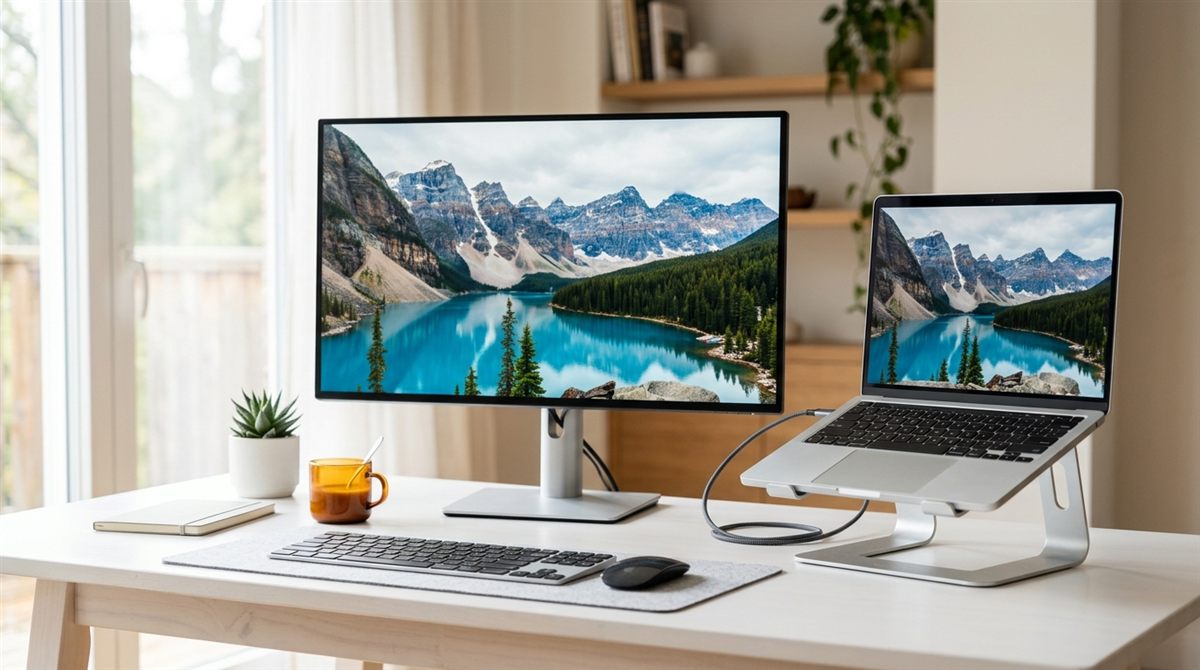
Raise your MacBook on a laptop stand beside the monitor so both screens sit near eye level.
FAQ
Do I need a Thunderbolt monitor?
No. Any monitor with USB-C DisplayPort input works with the MacBook Air. Thunderbolt matters for daisy-chaining and docks.
Is a 1440p monitor OK for a MacBook?
It works, but text looks softer than on 4K. If budget is tight, a 24-inch 4K monitor is a better choice for a Mac than a 27-inch 1440p.