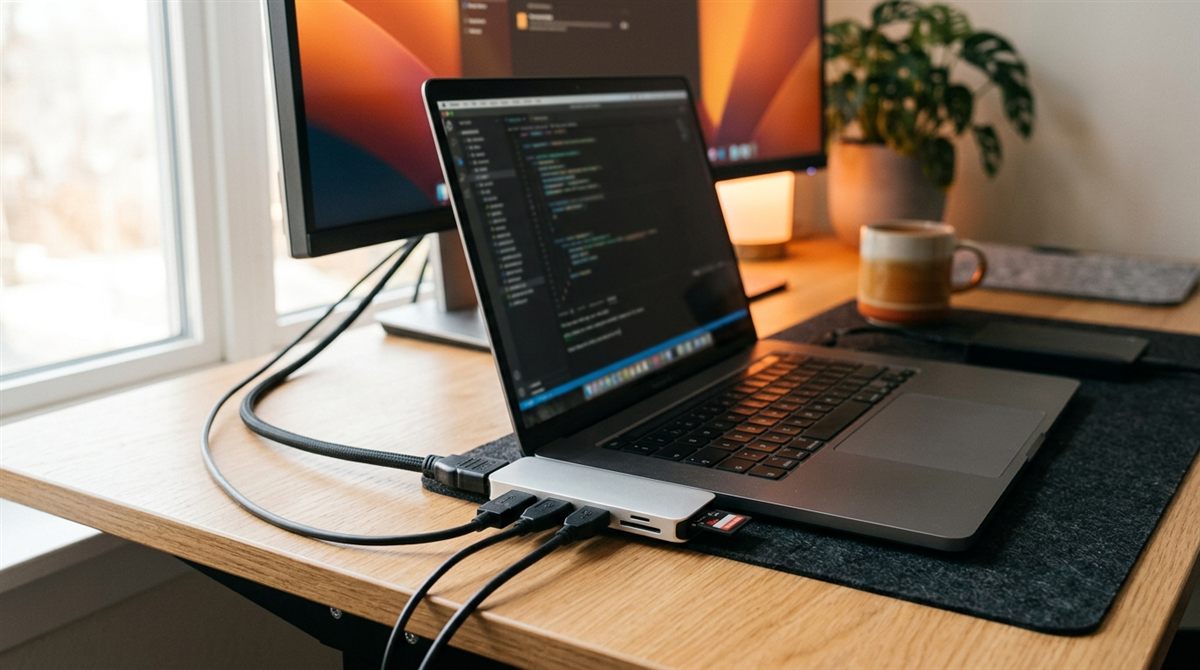
LaptopMastery is reader-supported. If you buy through a link on this page we may earn a commission, at no extra cost to you. As an Amazon Associate we earn from qualifying purchases. Prices and configurations change often, so always check the listing before you buy. Last checked: October 12, 2026.
Short answer: for adding ports on the go, get a UGREEN Revodok Pro 9-in-1 (it has Ethernet and 4K 60Hz HDMI) or the cheaper Anker 7-in-1. For a permanent desk setup with monitors, drives and charging over one cable, a Thunderbolt dock like the CalDigit TS4 or TS5 is worth the money.
In this article
Hub or dock: which do you need?
- USB-C hub ($20–$60): small, bus-powered, adds HDMI, USB-A, SD card and sometimes Ethernet. Good for travel and one monitor.
- Thunderbolt/USB4 dock ($250–$400): has its own power supply, charges your laptop at up to ~100–140W, drives multiple high-resolution monitors, and has many more fast ports. It’s for a desk you return to every day.
Three things to check before buying
- 4K at 60Hz, not 30Hz. Many cheap hubs only do 4K at 30Hz, which makes the mouse feel laggy. Look for “4K@60Hz” in the specs.
- Dual monitors and Macs. Hubs with two HDMI ports usually rely on a technology (MST) that macOS doesn’t support, so on a Mac both screens show the same image. For two different screens on a Mac, use a Thunderbolt dock, and check your Mac’s limit (the M5 MacBook Air supports two external displays).
- Pass-through charging. Hubs pass your charger’s power through but keep about 10–15W for themselves. With a 100W charger, expect ~85W at the laptop.
Quick comparison
| Best USB-C hub for most peopleUGREEN Revodok Pro 9-in-1 | Check price |
| Best budget hubAnker 7-in-1 USB-C Hub (4K@60Hz) | Check price |
| Best compact hub for fast drivesUGREEN Revodok Pro 107 (10Gbps) | Check price |
| Best Thunderbolt dockCalDigit TS4 | Check price |
| Best for new Thunderbolt 5 laptopsCalDigit TS5 | Check price |
Best USB-C hub for most people
UGREEN Revodok Pro 9-in-1
This hub covers nearly everything a modern laptop is missing: 4K@60Hz HDMI, gigabit Ethernet (much more reliable than hotel Wi-Fi), USB-A and USB-C data ports, SD and microSD readers, and 100W pass-through charging.
Good: 4K 60Hz HDMI, Ethernet, card readers, compact aluminium body.
Not so good: Gets warm with everything connected, only one display.
Best budget hub
Anker 7-in-1 USB-C Hub (4K@60Hz)
A simple, inexpensive hub from a reliable brand with 4K@60Hz HDMI, USB-A and USB-C data ports, SD/microSD and 85W pass-through charging. It’s the one to throw in a laptop bag.
Good: Cheap, small, 4K 60Hz, trusted brand.
Not so good: No Ethernet, data ports share 5Gbps.
Best compact hub for fast drives
UGREEN Revodok Pro 107 (10Gbps)
If you move a lot of files to an external SSD, most hubs bottleneck you at 5Gbps. The Revodok Pro 107 has 10Gbps USB-C and USB-A ports, so a portable SSD runs at full speed through it.
Good: 10Gbps data ports, 100W pass-through, 4K HDMI.
Not so good: No Ethernet, costs more than basic hubs.
Best Thunderbolt dock
CalDigit TS4
The TS4 is the long-time favourite of Mac and Windows professionals: 18 ports including 2.5GbE Ethernet, three Thunderbolt 4 ports, SD/microSD, audio, and 98W laptop charging through one cable. It’s rock-solid with external monitors and drives.
Good: Huge port selection, reliable, 98W charging, works with Mac and Windows.
Not so good: Expensive, large power brick.
Best for new Thunderbolt 5 laptops
CalDigit TS5
If your laptop has Thunderbolt 5 (recent MacBook Pros with M4 Pro/Max and later, plus some high-end Windows laptops), the TS5 gives you 120Gbps bandwidth for multiple high-refresh monitors and the fastest external storage, plus 140W charging.
Good: Thunderbolt 5 bandwidth, 140W charging, future-proof.
Not so good: Very expensive, overkill for Thunderbolt 4 laptops.
Which cable do I need?
Use the cable that came with the hub or dock. For Thunderbolt docks, use a certified Thunderbolt 4/5 cable. A generic USB-C charging cable will often connect, but at USB 2.0 data speed and without video.
Setting up an external monitor
Once your hub or dock is connected, see our step-by-step guide to connecting a laptop to an external monitor, including how to set resolution, scaling and refresh rate. If you want to use the laptop with the lid closed, see clamshell mode.