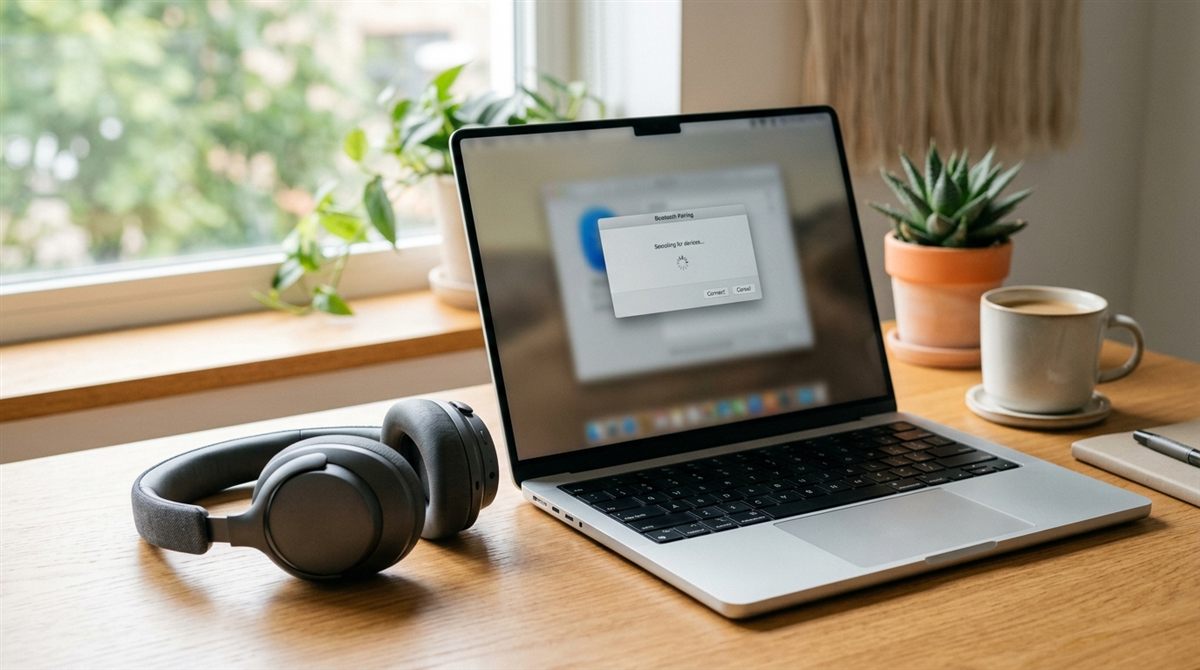
Pairing Bluetooth headphones or earbuds with a laptop takes under a minute. Here’s how on Windows 11 and Mac, plus fixes for the most common problems: no sound, poor microphone audio and dropouts.
In this article
Step 1: Put your headphones in pairing mode
This is different from just turning them on. Usually you hold the power or Bluetooth button for 5–7 seconds until a light flashes, or for earbuds, open the case and hold the button on it. Check your headphones’ manual if unsure.
Step 2: Pair on Windows 11
- Go to Settings → Bluetooth & devices and make sure Bluetooth is on.
- Click Add device → Bluetooth.
- Select your headphones from the list and wait for “Connected”.
Swift Pair: many headphones trigger a pop-up on Windows when in pairing mode nearby. Just click Connect.
Pair on a Mac
System Settings → Bluetooth, then click Connect next to your headphones. AirPods signed into the same Apple Account connect automatically.
Fix: connected, but no sound
- Click the speaker icon in the taskbar, click the > arrow next to the volume slider, and select your headphones.
- Check the volume on the headphones themselves.
- If you see two entries for your headphones (e.g. “Headphones” and “Headset/Hands-Free”), choose the plain Headphones / Stereo one for music.
Fix: sound becomes terrible during calls
When an app uses your headphones’ microphone, classic Bluetooth switches to a low-quality “hands-free” profile, and music suddenly sounds tinny. Fixes:
- Use your laptop’s built-in microphone (or a USB mic) and keep the headphones as the speaker. In Teams/Zoom/Discord, set the microphone to the laptop’s mic.
- Newer laptops and headphones that support Bluetooth LE Audio avoid this problem. Windows 11 enables it automatically when both devices support it.
Fix: won’t pair or keeps disconnecting
- Turn Bluetooth off and on (Win + A Quick Settings).
- Remove the device: Settings → Bluetooth & devices → click the three dots next to it → Remove device. Then pair again.
- Reset the headphones to factory settings (see the manual). This clears old pairings.
- If the headphones are connected to your phone, disconnect them there first. Some only connect to one device at a time.
- Update your Bluetooth driver from your laptop maker’s support site (Intel, Realtek, MediaTek or Qualcomm).
- Move closer. Bluetooth range drops behind walls and bodies, and USB 3 devices/hubs near the laptop’s antenna can cause interference.
- Turn off battery-saving for Bluetooth: Device Manager → Bluetooth → your adapter → Properties → Power Management → untick “Allow the computer to turn off this device to save power”.
Fix: audio lags behind video
Some Bluetooth delay is normal. Close and reopen the video, update drivers, or use the “low latency” / “game mode” setting in your headphones’ app if they have one. For gaming, a headset with its own USB-C dongle has far less lag than Bluetooth.
Battery tip: Bluetooth itself uses little power, but turning it off when not in use still helps. See more battery tips.
Still no sound, or mic not working? See laptop no sound or microphone not working.