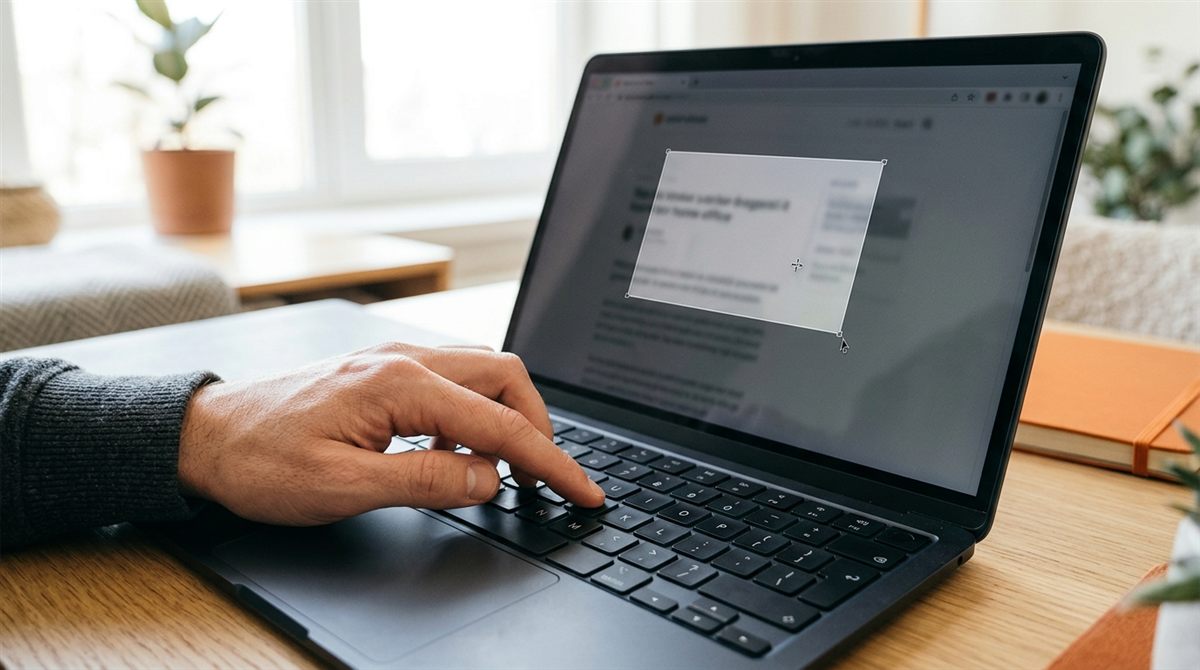
Windows 11 has several ways to take a screenshot. These are the fastest, from most to least useful.
In this article
1. Win + Shift + S: capture any part of the screen
Press Windows + Shift + S. The screen dims and a small toolbar appears at the top. Choose:
- Rectangle: drag to select an area
- Window: click a window
- Full screen
- Freeform: draw any shape
The screenshot is copied to your clipboard, so you can paste it straight into an email, chat or document with Ctrl + V. A notification also appears. Click it to open Snipping Tool, where you can annotate, crop and save it. Screenshots are also saved automatically to Pictures → Screenshots.
2. Print Screen key
In Windows 11, pressing PrtScn opens the same Snipping Tool capture bar by default. On many laptops PrtScn shares a key with another function, so you may need Fn + PrtScn. To change this behaviour, go to Settings → Accessibility → Keyboard → Use the Print screen key to open screen capture.
3. Win + PrtScn: instant full-screen save
Press Windows + PrtScn (or Windows + Fn + PrtScn). The screen dims briefly and a full-screen image is saved straight to Pictures → Screenshots. It’s useful for quickly capturing several screens in a row.
4. Alt + PrtScn: the active window only
Copies just the window you’re working in to the clipboard. Paste it with Ctrl + V.
5. Record your screen
Snipping Tool also records video. Press Win + Shift + R, select an area and click Start. For games, use the Xbox Game Bar: Win + Alt + R to start and stop recording, or Win + Alt + PrtScn for a game screenshot. Captures are saved in Videos → Captures.
Laptop has no Print Screen key?
Win + Shift + S works on every Windows laptop. On Microsoft Surface tablets, press Power + Volume Up.
Windows 10
All of the shortcuts above work in Windows 10 too, except that PrtScn copies the full screen to the clipboard instead of opening the capture bar.
Mac shortcuts (for comparison)
- Cmd + Shift + 3: full screen
- Cmd + Shift + 4: select an area (press Space to capture a window)
- Cmd + Shift + 5: screenshot and screen-recording toolbar
Brand-specific tips (HP, Dell, Lenovo and more)
- HP: the Print Screen key is often labelled prt sc and may share a key with another function. Try Fn + prt sc. Many HP laptops also have a dedicated screenshot key on the top row.
- Dell: PrtScn is usually on the top row, sometimes paired with F10 or Insert. Use Fn + PrtScn if the plain key does something else.
- Lenovo: PrtSc is typically near the right Alt key or on the top row. On some ThinkPads you’ll find it between Alt and Ctrl. Fn + PrtSc works if Fn Lock is on.
- ASUS / Acer: look for PrtSc on the top row, next to Delete. Combine with Fn if needed.
- Microsoft Surface: Power + Volume Up on tablets, or Win + Shift + S on the Type Cover.
No Print Screen key (or no Windows key)?
- Open Snipping Tool from the Start menu and click New.
- Use the touch keyboard or On-Screen Keyboard (search Start), which has a PrtScn key.
- Pen users: many pens have a shortcut button you can set to take a screenshot (Settings → Bluetooth & devices → Pen & Windows Ink).
Chromebook screenshots
Press Ctrl + Show windows (the key with rectangles) for a full screenshot, or Ctrl + Shift + Show windows for a partial one. You can also use Screen capture in Quick Settings.
Need video instead? See how to record your screen.
Where are my screenshots?
Open File Explorer → Pictures → Screenshots. If OneDrive is backing up your Pictures folder, look in OneDrive → Pictures → Screenshots.