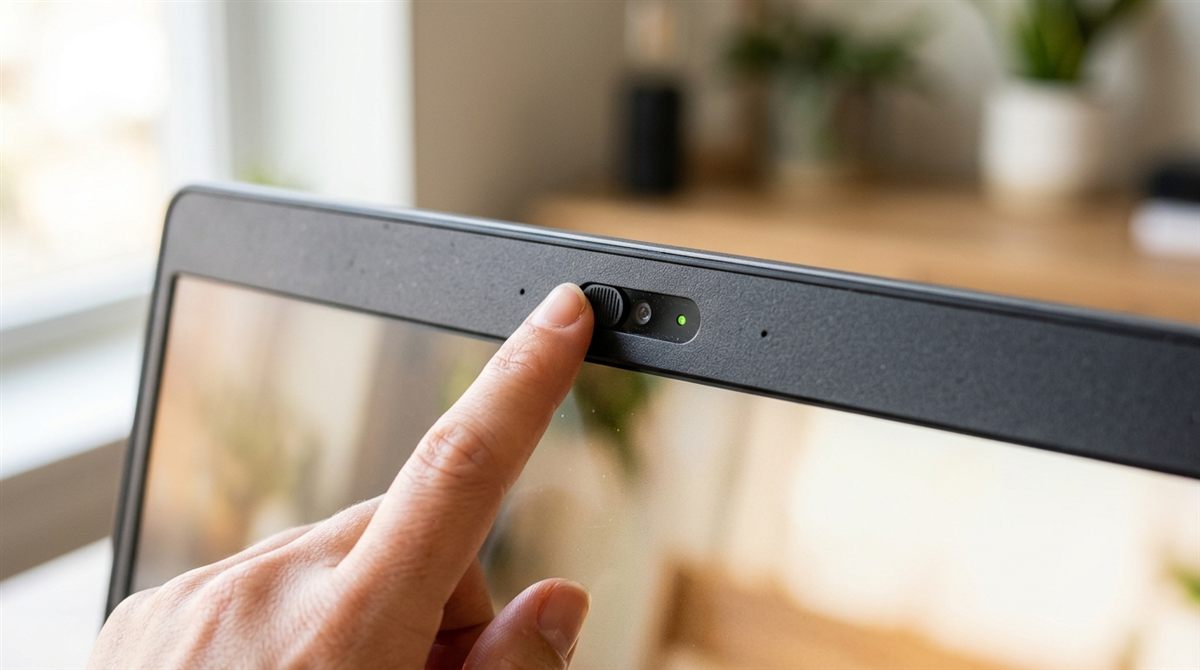
Laptop camera not working in Teams, Zoom or Google Meet? Nine times out of ten it’s a privacy shutter, a camera-off key, or a permission setting, not a broken camera. Start with the quick checks.
Quick fixes to try first
- Look for a physical privacy shutter above the screen and slide it open.
- Press the camera key if your laptop has one (an F-key or side button with a camera icon, often with a slash).
- Close every other app that might be using the camera (Teams, Zoom, browser tabs), then try again.
In this article
1. Check the privacy shutter and camera key
Many laptops from HP, Lenovo, Dell and ASUS have a sliding cover or an electronic “camera kill” switch. A black image, a camera with a red slash icon, or “We can’t find your camera” are classic signs. Some HP models use a dedicated key on the function row, and some Lenovos have a switch on the side of the laptop.
2. Check Windows camera permissions
- Open Settings → Privacy & security → Camera.
- Turn on Camera access and Let apps access your camera.
- Scroll down and turn on Let desktop apps access your camera. Zoom, Teams (classic) and many others need this.
- Make sure your browser (Chrome, Edge) is allowed too, for Google Meet and web-based calls.
3. Select the right camera in the app
- Teams: Settings → Devices & audio → Camera.
- Zoom: Settings → Video & effects → Camera.
- Google Meet: click the three dots → Settings → Video. Also check the camera icon in the browser’s address bar and choose “Always allow”.
Laptops with an IR camera for Windows Hello sometimes list two cameras. Pick the one that isn’t “IR”.

4. The camera light is on but the picture is black
- The shutter is closed (check again closely, as some are subtle).
- Another app is holding the camera. Restart the laptop to release it.
- Background blur or virtual backgrounds are glitching. Turn video effects off, including Windows Studio Effects in Quick Settings.
5. Reinstall or update the camera driver
- Right-click Start → Device Manager → Cameras (or Imaging devices).
- If the camera shows a down-arrow, right-click → Enable device.
- Otherwise right-click → Uninstall device, then restart to reinstall.
- Still not working? Install the camera and chipset drivers from your laptop maker’s support site. See how to update drivers.
If the camera doesn’t appear in Device Manager at all, check the BIOS for a disabled camera setting. If it isn’t there either, the camera or its cable has likely failed.
Test the camera outside your meeting app
Open the built-in Camera app from Start. If it works there, the problem is your meeting app’s settings or permissions. If it doesn’t, it’s the shutter, privacy settings, driver or hardware.
On a Mac
- System Settings → Privacy & Security → Camera, then allow Zoom, Teams or your browser.
- Quit and reopen the app after changing permissions.
- Test in FaceTime or Photo Booth. A green light next to the camera means it’s active.
Upgrade option
Laptop webcams are often low quality even when they work. An external webcam is a big upgrade for daily calls. See our best webcams and microphones.
FAQ
Why does my camera work in the Camera app but not in Zoom?
Zoom isn’t allowed to use the camera (“Let desktop apps access your camera” is off), or Zoom is set to the wrong camera. Check steps 2 and 3.
Can a laptop camera be hacked?
It’s rare, but possible with malware. The camera light comes on when it’s in use, and a physical shutter is the simplest protection. Keep Windows Security on. See do you need antivirus?