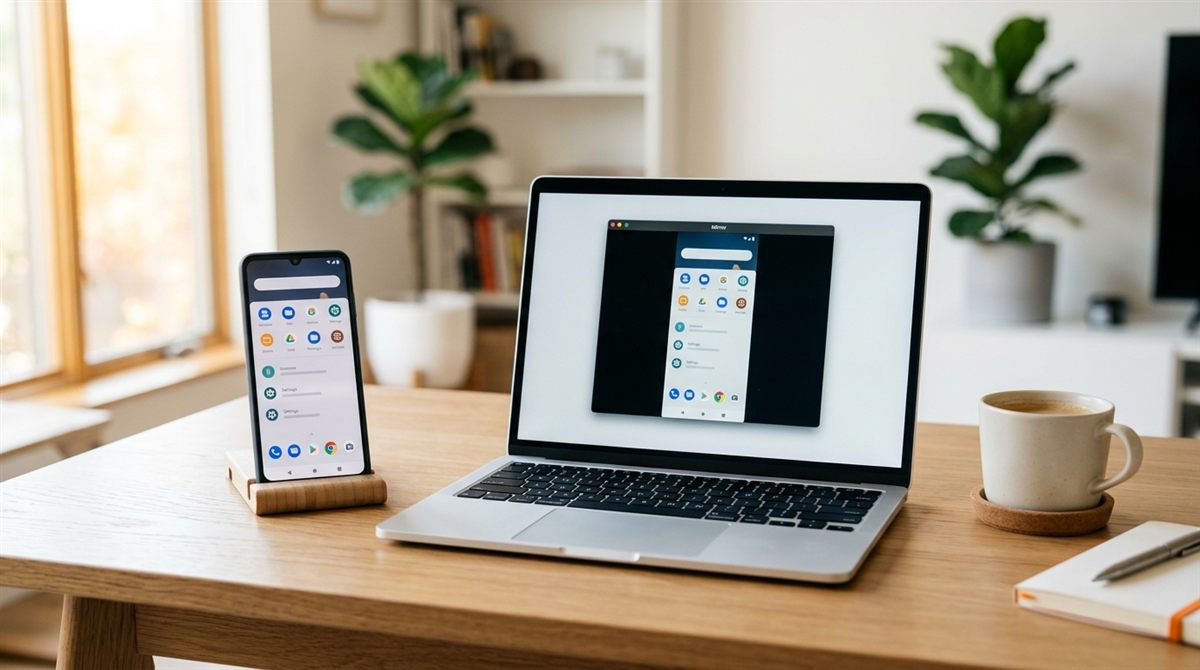
Mirroring your Android phone to your laptop lets you use phone apps on the big screen, reply to messages with a real keyboard, or show something to a group. Here are the best free methods.
In this article
Method 1: Phone Link (built into Windows 11)
Microsoft’s Phone Link connects your Android phone to Windows for notifications, messages, photos and calls. On supported phones (including most recent Samsung Galaxy, Honor and some other models) it can also mirror your phone screen and run individual Android apps in windows on your laptop.
- On your laptop, open Phone Link from the Start menu and choose Android.
- On your phone, install Link to Windows from the Play Store (pre-installed on Samsung phones under Settings → Connected devices → Link to Windows).
- Scan the QR code shown on your laptop and grant the permissions.
- Open the Apps section in Phone Link to mirror the screen or open apps (if your phone supports it).
Method 2: scrcpy (free, works with almost any Android phone)
scrcpy is a free, open-source tool that mirrors and controls your phone over USB or Wi-Fi with very low lag. You can use your laptop’s keyboard and mouse to control the phone.
- On the phone, enable Developer options: Settings → About phone → tap Build number seven times.
- In Developer options, turn on USB debugging.
- Download scrcpy from its official GitHub page (Genymobile/scrcpy) and extract it.
- Connect the phone via USB, accept the “Allow USB debugging” prompt, and run scrcpy.
Turn USB debugging off again when you’re finished if you don’t use it regularly.
Method 3: Wireless casting (Miracast)
Many Android phones (Samsung’s Smart View, and others’ “Cast” or “Screen Mirroring”) can cast to a Windows laptop:
- On the laptop, install the Wireless Display optional feature (Settings → System → Optional features), then open Settings → System → Projecting to this PC and allow it.
- Open the Wireless Display app on the laptop.
- On the phone, open Smart View / Screen Mirroring from Quick Settings and choose your laptop.
It’s convenient, but laggier than scrcpy, and you can’t control the phone from the laptop.
Chromebooks
ChromeOS’s Phone Hub (Settings → Connected devices) shows notifications, messages and recent photos from your Android phone, and can stream apps on supported devices.
Which should you use?
- Messages, notifications and photos: Phone Link
- Full control with low lag, any phone: scrcpy
- Quickly showing your screen, no setup on the phone: Miracast casting
Avoid unknown “screen mirroring” apps with lots of ads. They often request invasive permissions.