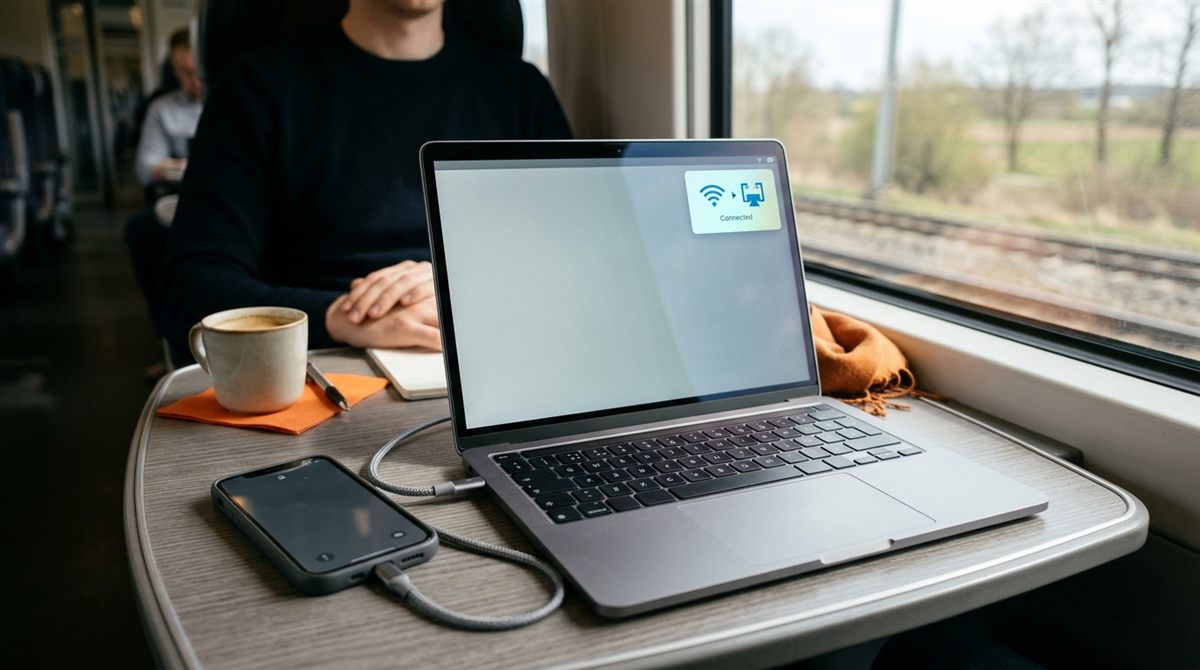
There are two directions you might want to share internet: from your phone to your laptop (when there’s no Wi-Fi), or from your laptop to your phone or other devices. Here’s how to do both.
In this article
Phone → laptop: USB tethering
USB tethering is faster and more stable than a Wi-Fi hotspot, charges your phone at the same time, and works on laptops whose Wi-Fi isn’t working, which is handy right after a clean install.
Android
- Connect your phone to the laptop with a USB cable that supports data.
- On the phone: Settings → Network & internet → Hotspot & tethering → USB tethering (on Samsung: Connections → Mobile Hotspot and Tethering → USB tethering).
- Windows connects automatically. You’ll see a new wired network connection.
iPhone
- On Windows, install the Apple Devices app (or iTunes) from the Microsoft Store for the drivers.
- On the iPhone: Settings → Personal Hotspot → Allow Others to Join.
- Connect with a USB cable and tap Trust on the iPhone.
Check your mobile plan. Some plans limit or charge extra for hotspot/tethering data.
Laptop → phone or other devices: Mobile hotspot
If your laptop has internet (for example Ethernet in a hotel room), Windows can share it as a Wi-Fi hotspot:
- Go to Settings → Network & internet → Mobile hotspot.
- Choose the connection to share (e.g. Ethernet) and share it over Wi-Fi (or Bluetooth).
- Click Edit to set the network name and a strong password.
- Turn Mobile hotspot on, and connect your phone to that Wi-Fi network.
On a Mac: System Settings → General → Sharing → Internet Sharing.
Laptop → Android phone over USB (reverse tethering)
Sharing a laptop’s connection to a phone over the USB cable isn’t built into Windows or Android. If you need it (for example, the phone has no signal and there’s no Wi-Fi), the free open-source tool gnirehtet (from the makers of scrcpy) does it. It requires enabling USB debugging on the phone. For most people the Mobile hotspot method above is simpler.
Troubleshooting
- USB tethering option greyed out: the cable may be charge-only. Try another cable, or the phone needs mobile data turned on.
- Connected but no internet: turn off Wi-Fi on the laptop to make sure it’s using the tethered connection, and toggle tethering off and on.
- iPhone not detected: reinstall the Apple Devices app, use a genuine or MFi-certified cable, and unlock the phone.
- Mobile hotspot won’t turn on: update your Wi-Fi driver, and check that the laptop actually has an internet connection to share.