You need your laptop’s exact model number for drivers, warranty claims, replacement chargers and batteries, and support. Its serial number (or service tag) proves ownership and unlocks warranty lookups. Here’s how to find both, plus full specs, in under a minute.
Quick fixes to try first
- Windows 11: Settings → System → About shows the device name, processor, RAM and Windows version.
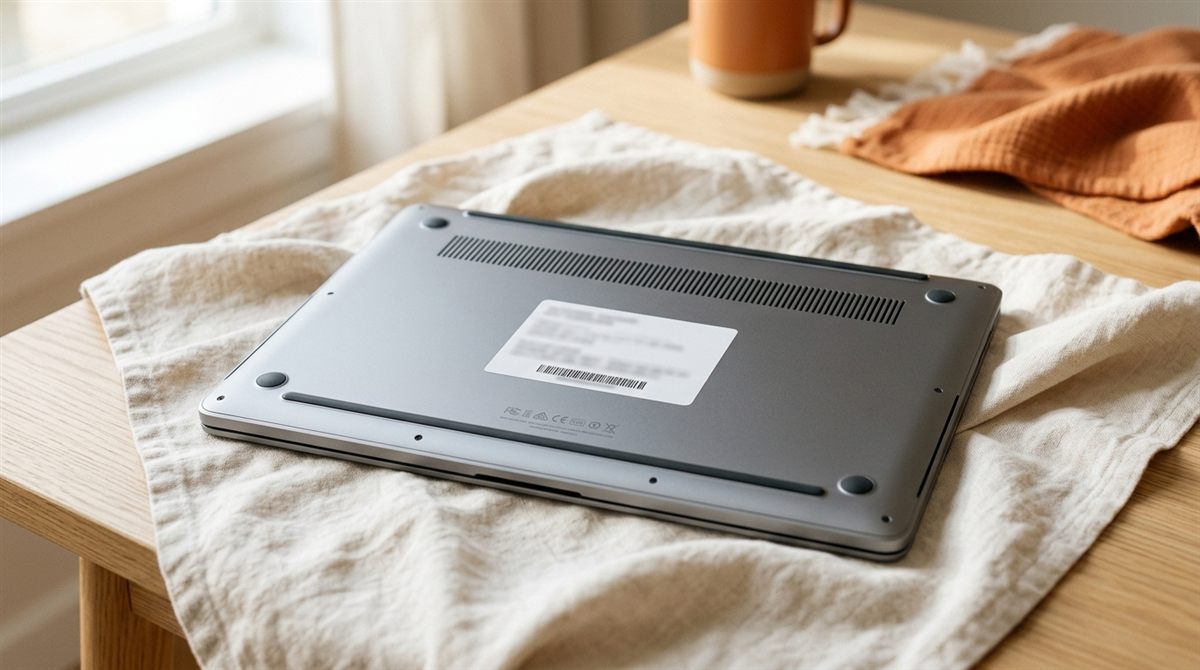
- Turn the laptop over. The sticker on the bottom (or under the battery/kickstand) lists model and serial.
- Mac: Apple menu → About This Mac.
In this article
Find the model number
Windows: System Information (most detailed)
- Press Win + R, type
msinfo32, and press Enter. - Look at System Manufacturer, System Model and System SKU. The SKU is often the precise retail model (useful for HP and Lenovo).
Windows: Terminal (quickest)
Right-click Start → Terminal, then paste:
Get-CimInstance Win32_ComputerSystem | Select-Object Manufacturer, Model, SystemSKUNumber
Manufacturer apps and shortcuts
- HP: press Fn + Esc to show a System Information window with product name, product number and serial number. HP Support Assistant also shows them.
- Lenovo: Lenovo Vantage shows the machine type and serial. ThinkPad model numbers look like “21HM” (machine type).
- Dell: the 7-character Service Tag is on the bottom sticker and in SupportAssist. Dell uses it for drivers and warranty.
- ASUS: MyASUS → System info.
- Acer: Acer Care Center shows the model and SNID.

Find the serial number
- Terminal:
Get-CimInstance Win32_BIOS | Select-Object SerialNumber(the oldwmic bios get serialnumbercommand is being removed from Windows). - BIOS/UEFI setup screen (F2, F1, F10 or Del at startup): the main page shows the serial.
- The sticker on the bottom, or the original box and receipt.
- Mac: Apple menu → About This Mac shows the serial. It’s also at checkcoverage.apple.com.
Find your full specs (processor, RAM, graphics, storage)
- Task Manager → Performance (Ctrl + Shift + Esc) shows CPU model, RAM amount and speed, slots used, GPU and disk type.
- Settings → System → Storage shows drive size and space used.
- Graphics card details: see how to find your graphics card.
- Battery health and capacity: see check battery health.
Find your screen size
Screen size is measured diagonally, corner to corner of the display area (not the bezel). It’s usually in the model name or spec sheet (“15-inch”, “14-inch”). Search your model number with “specs”.
On a Chromebook
Go to chrome://system in the browser for hardware details, or Settings → About ChromeOS. The model is also on the sign-in screen with Alt + V.
Why the exact model matters
- Drivers and BIOS updates are specific to your model. See how to update drivers safely.
- Replacement parts: chargers, batteries, RAM and SSDs. See SSD upgrade guide.
- Warranty and resale: buyers and support teams will ask for it.
FAQ
What’s the difference between model number and serial number?
The model number identifies the type of laptop (shared by thousands of units). The serial number is unique to your laptop.
The sticker has worn off. Where else can I look?
Use System Information, the BIOS screen or your manufacturer’s app, as above. All read the details stored in the laptop’s firmware.