LaptopMastery is reader-supported. If you buy through a link on this page we may earn a commission, at no extra cost to you. As an Amazon Associate we earn from qualifying purchases. Prices and configurations change often, so always check the listing before you buy. Last checked: October 12, 2026.
Swapping a slow or full drive for a modern NVMe SSD is the single most effective upgrade for an older Windows laptop. It takes about 30 minutes and usually needs just a small screwdriver. This guide shows you how to check whether your laptop can be upgraded, which SSD to buy, and how to move Windows across without losing anything.
Quick picks: for most laptops with an M.2 2280 slot, buy the Samsung 990 EVO Plus or the Crucial P310. For small laptops and handhelds that take a short M.2 2230 drive, buy the Crucial P310 2230.
In this article
Step 1: Can your laptop be upgraded?
- MacBooks (2016 and later): no. Storage is soldered to the board. Use a portable SSD instead.
- Most Windows laptops with an SSD: yes. Gaming laptops and business laptops (ThinkPad, Latitude, EliteBook) are almost always upgradeable, and many have a second empty slot.
- Cheap laptops with “64GB/128GB eMMC” or “UFS” storage: usually no. The storage is soldered, and there’s no M.2 slot.
- Older laptops with a 2.5-inch hard drive: yes, and the speed-up is dramatic. Use a 2.5-inch SATA SSD.
To check yours, search for your exact model number plus “service manual” or “hardware maintenance manual”. Lenovo, Dell and HP publish these with photos of the M.2 slot. Crucial’s online System Advisor also lists compatible drives by model. Note three things: the form factor (2280, 2242 or 2230, which is the length in millimetres), the interface (NVMe PCIe or SATA), and whether there’s a second slot.
Step 2: Choose the right SSD
- PCIe Gen 4 NVMe drives work in Gen 3 slots too (at Gen 3 speed), so a Gen 4 drive is the safe default.
- Single-sided drives (chips on one side only) fit thin laptops. All picks below are single-sided in their 1TB–2TB versions.
- Efficiency beats peak speed in a laptop. A drive that runs cooler and sips power gives you better battery life. You won’t notice the difference between 5,000MB/s and 7,000MB/s in everyday use.
Quick comparison
| Best laptop SSD for most peopleSamsung 990 EVO Plus (M.2 2280) | Check price |
| Best valueCrucial P310 (M.2 2280) | Check price |
| Best for small laptops and handheldsCrucial P310 (M.2 2230) | Check price |
| Fast alternativeWD_BLACK SN7100 | Check price |
Best laptop SSD for most people
Samsung 990 EVO Plus (M.2 2280)
Fast (up to ~7,150MB/s), very power-efficient, and backed by Samsung’s Magician software for firmware updates and health monitoring. It’s an ideal match for laptops because it runs cool without a heatsink. Also available in 2TB.
Good: Fast, efficient, cool-running, good software, 5-year warranty.
Not so good: Usually slightly more expensive than Crucial.
Best value
Crucial P310 (M.2 2280)
The P310 is a modern Gen 4 drive with excellent power efficiency, which makes it perfect for laptops. It’s typically one of the cheapest reputable 1TB and 2TB NVMe drives. 2TB version.
Good: Great price, very efficient, reputable brand.
Not so good: Slower sustained writes than premium drives (not noticeable in normal use).
Best for small laptops and handhelds
Crucial P310 (M.2 2230)
Microsoft Surface laptops, some Dell and Lenovo ultraportables, the Steam Deck, ROG Ally and Legion Go use the short 2230 size. The P310 2230 is the go-to upgrade. Also available in 2TB.
Good: Fits 2230 slots, fast and efficient.
Not so good: Costs more per terabyte than full-size drives.
Fast alternative
WD_BLACK SN7100
Western Digital’s efficient Gen 4 drive is very fast and runs cool. It’s a great choice for gaming laptops with a spare M.2 slot.
Good: Very fast, efficient, good for gaming laptops.
Not so good: Pricier than the P310.
Step 3: What you’ll need
- A precision screwdriver set such as the iFixit Moray Driver Kit (most laptops use Phillips #0/#00 or Torx T5).
- A plastic pry tool or old guitar pick for bottom panels with clips (included in the iFixit Pro Tech Toolkit).
- For cloning a single-slot laptop: a USB-C M.2 NVMe enclosure. It doubles as a portable drive for your old SSD afterwards.
Step 4: Move Windows to the new SSD
Before anything else: back up your files and, if your drive is encrypted with BitLocker or Device Encryption (common on Windows 11), find your recovery key at account.microsoft.com/devices/recoverykey. Without it you could be locked out of the old drive.
Option A: Fresh install (cleanest)
- Make sure your files are synced to OneDrive or copied to an external drive.
- Create a Windows 11 USB installer with Microsoft’s Media Creation Tool. See how to boot from USB.
- Install the new SSD, boot from the USB, and follow our clean install guide. Windows reactivates automatically because the license is tied to your laptop.
Option B: Clone the old drive
- Put the new SSD in the second slot or a USB enclosure.
- Clone with your SSD maker’s tool (Samsung Magician’s Data Migration works with Samsung drives) or a free tool like Clonezilla.
- Swap the drives, boot up, and check that everything works. If the new drive is larger, use Disk Management to extend the partition.
Step 5: Install the drive
- Shut down fully (hold Shift while clicking Shut Down) and unplug the charger.
- Remove the bottom panel screws. Some hide under rubber feet. Pry gently from a corner near a hinge.
- Disconnect the battery connector if it’s easy to reach. Many manufacturers recommend it.
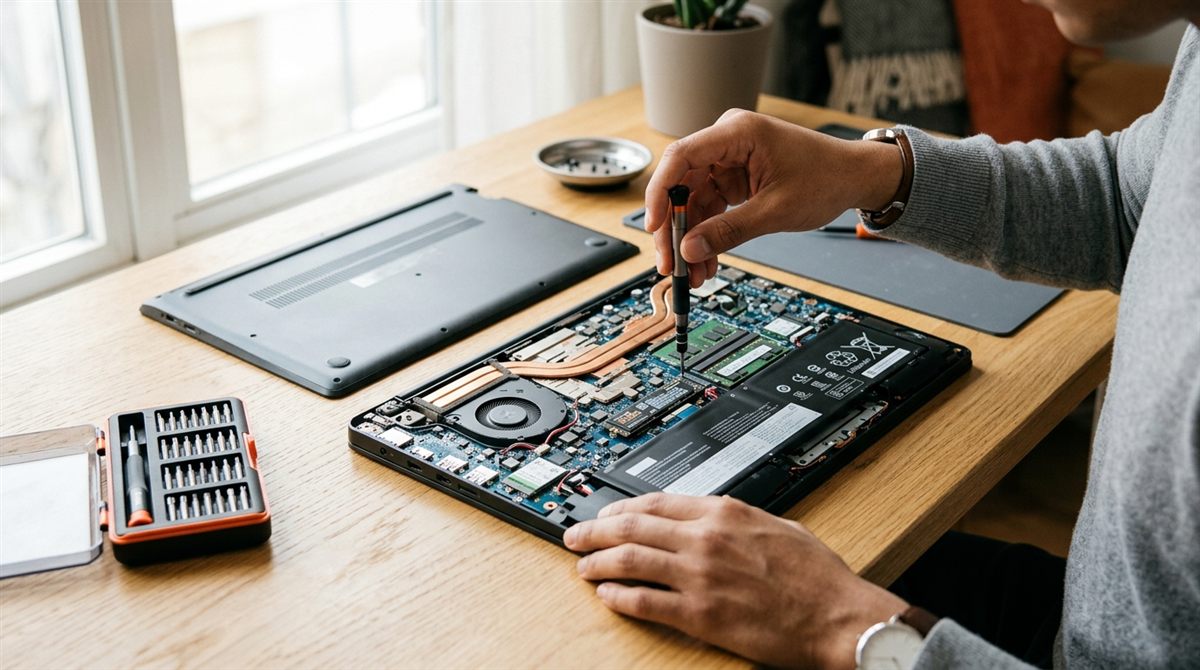
- Remove the single screw holding the SSD, slide the old drive out at an angle, insert the new one at about 30°, press it down and replace the screw. Move any thermal pad or heat spreader across.
- Reconnect the battery, replace the panel, and boot.
What about RAM upgrades?
If your laptop has SO-DIMM slots (common in gaming and business laptops), adding RAM is just as easy. But in 2026, memory prices have spiked because AI data centres are absorbing most DRAM production, so a 32GB DDR5 laptop kit costs several times what it did in 2024. Check whether your laptop really needs it. See how much RAM you need, and use Task Manager’s memory graph to check. Most thin laptops have soldered RAM that can’t be upgraded at all.