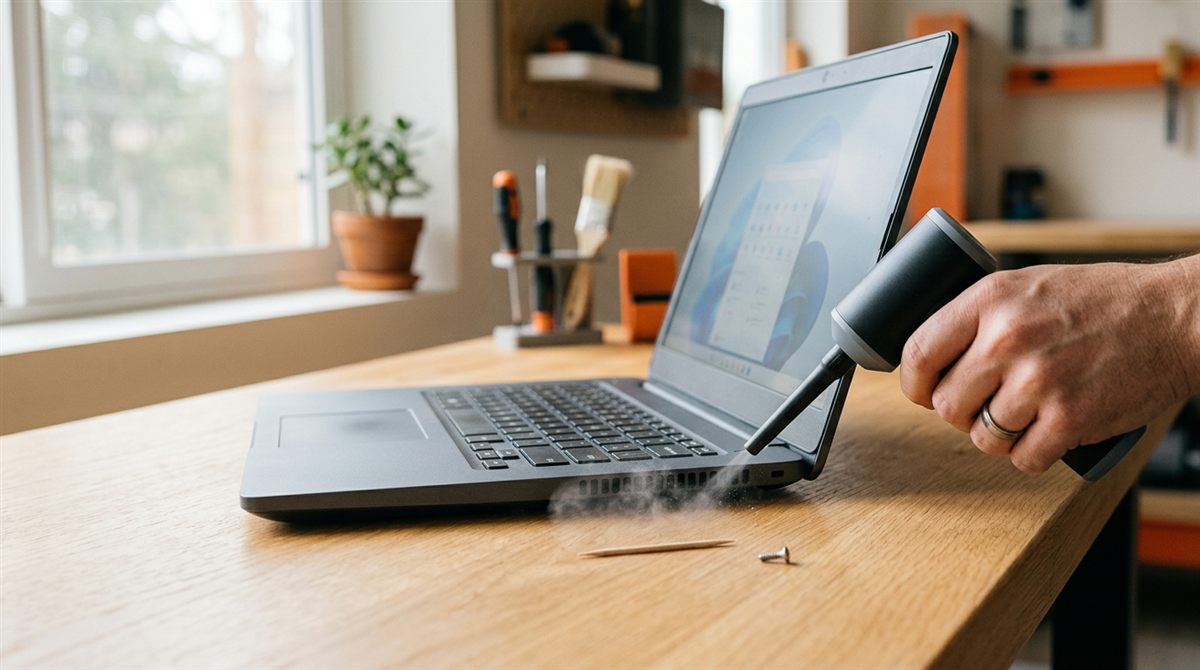
Dust building up in a laptop’s fan and heatsink is the most common reason laptops get loud, hot and slow. You can clear most of it without opening the case, using a can of air or an electric duster. It takes about five minutes.
In this article
What you need
- An electric air duster (reusable, more powerful) or cans of compressed air
- A toothpick or thin plastic tool
- A soft brush (optional)
- A well-ventilated space. Lots of dust will come out.
Step-by-step
- Shut down completely and unplug the charger. Never do this with the laptop running.
- Find the vents. Most laptops pull air in through the bottom and blow it out the back or sides. The exhaust is where dust collects, because it builds up on the heatsink fins right behind the exhaust grille.
- Stop the fan from spinning. Gently push a toothpick through the intake grille against a fan blade, if you can see one. Blasting a fan with air can spin it far faster than it’s designed to and damage its bearing, or even generate a voltage back into the board.
- Blow short bursts into the exhaust vent, then into the intake vents. Hold cans upright and keep the nozzle a few centimetres away. Use 1–2 second bursts, not long continuous sprays.
- Blow in from the intake so dust exits the exhaust, then try the reverse. Repeat until no more dust comes out.
- Brush off dust from the outside of the grilles.
- Let the laptop sit for a few minutes (canned air can leave condensation), then power it on.
Did it work?
Run something demanding (a game, a video export, or a stress test) and compare fan noise and temperatures with before. A temperature monitor makes this easy. See how to check laptop temperature. Many people see a big drop in temperatures and noise after the first cleaning of a laptop that’s a few years old.
When you need to open the laptop
Blowing through the vents can’t remove a compacted mat of dust lodged between the fan and the heatsink. If the laptop is still hot or loud after cleaning, or rattles, you’ll need to remove the bottom panel. It’s usually just screws on most Windows laptops; MacBooks need special pentalobe screwdrivers. An iFixit Pro Tech Toolkit covers almost every laptop.
Gaming laptops that are 2–3 years old also benefit from fresh thermal paste (such as Arctic MX-6) on the CPU and GPU. Only do this if you’re comfortable with repairs. Otherwise a local repair shop will clean and re-paste a laptop for a modest fee.
Warranty note: opening the bottom panel doesn’t void the warranty on most laptops in the US, but damage you cause isn’t covered. Check your manufacturer’s policy first.
Prevent dust build-up
- Don’t use the laptop on beds, blankets or carpets. They block intakes and feed lint straight in.
- Raise the back with a laptop stand for better airflow.
- Blow out the vents every 3–6 months (monthly if you have pets).
More: how to stop laptop overheating · laptop cleaning schedule