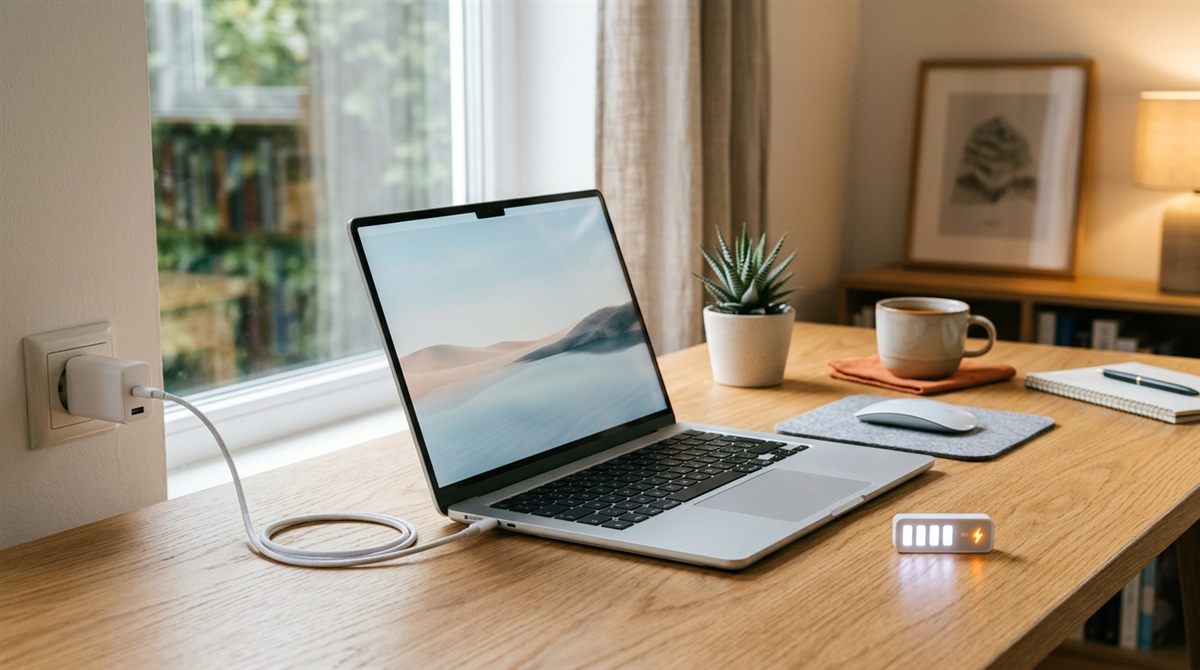
Short answer: yes, it’s safe. Modern laptops stop charging at 100% and can’t “overcharge”. But keeping a lithium-ion battery at 100% all the time, especially when it’s warm, does make it wear out faster. If your laptop is plugged in most of the day, the best thing you can do is turn on your laptop’s charge limit (usually 80%). It’s built into almost every laptop and takes a minute.
In this article
What actually wears out a laptop battery
Lithium-ion batteries age in two ways: charge cycles (using and refilling the battery) and calendar ageing, which is much faster when the battery sits at a high charge level and a high temperature. A laptop parked at 100% on a warm desk all day is ageing faster than it needs to. Heat is the single biggest enemy.
That’s why manufacturers now include charge-limiting features. Holding the battery at 80% instead of 100% noticeably slows wear over a few years.
How to turn on the charge limit
Mac (Apple silicon)
- Optimized Battery Charging is on by default. macOS learns your routine and holds the charge at 80% until shortly before you usually unplug.
- Charge Limit (macOS Tahoe 26.4 or later): go to System Settings → Battery, click the (i) next to Charging, and set a limit between 80% and 100%. When you need a full battery for a trip, choose Charge to Full Now from the battery menu.
Lenovo
Open Lenovo Vantage (or Lenovo Commercial Vantage) → Device → Power. IdeaPad and Yoga models have Conservation Mode (holds around 80%), and ThinkPads let you set custom start/stop charge thresholds.
ASUS
Open MyASUS → Customization → Battery Care (called Battery Health Charging on some models) and choose Balanced (80%) or Maximum Lifespan (60%). On ROG/TUF gaming laptops it’s in Armoury Crate.
Dell
Use Dell’s power management app (Dell Power Manager or Dell Optimizer, depending on model) or the BIOS: Battery Configuration → Primarily AC Use or Custom (for example, start charging at 50% and stop at 80%).
HP
Most HP laptops handle this in the BIOS (press F10 at startup): look for Battery Health Manager or Adaptive Battery Optimizer. Gaming laptops can also use Omen Gaming Hub.
Microsoft Surface
Open the Surface app → Battery & charging and turn on Smart Charging, or enable Battery Limit mode in the UEFI on older models.
Acer, MSI and others
Acer’s Care Center / Acer Battery Health and MSI’s MSI Center → Battery Master offer the same option. Search your model name plus “battery charge limit” if you can’t find it.
Other habits that help (and some that don’t)
Do
- Keep it cool. Don’t charge on a bed, pillow or sofa, which blocks the vents. Don’t leave the laptop in a hot car.
- Store it at about 50% if you won’t use it for a few weeks, and switch it off fully.
- Use a good charger with the right wattage. See recommended chargers.
Don’t bother with
- Draining to 0% regularly. That’s an old rule for nickel batteries and it harms lithium-ion. Deep discharges add wear.
- Manual “battery calibration”. Modern batteries don’t need it for health. The only reason to do a full charge-and-drain cycle is if the percentage reading becomes erratic (jumping from 30% to 5%, or shutting down at 20%). Then one full cycle can help the gauge relearn. Many laptops do this automatically by occasionally charging to 100% even with a limit set.
- Battery “optimiser” apps. They can’t do anything your laptop’s built-in settings can’t.
- Removing the battery. It’s impossible on modern laptops anyway.
Charging habits that really do damage batteries
- Gaming or rendering on a soft surface while charging (very high heat and high charge at once).
- Cheap, uncertified chargers that don’t regulate voltage properly.
- Leaving a laptop fully discharged for months. The battery can drop below a safe voltage and refuse to charge again.
- Ignoring a swollen battery. If the trackpad lifts, the case bulges or the laptop rocks on a table, stop using it and get the battery replaced. Swollen batteries are a fire risk.
Want to know how worn your battery already is? See how to check laptop battery health. For longer runtime, see battery life tips.
Laptop not charging at all? See laptop plugged in but not charging.