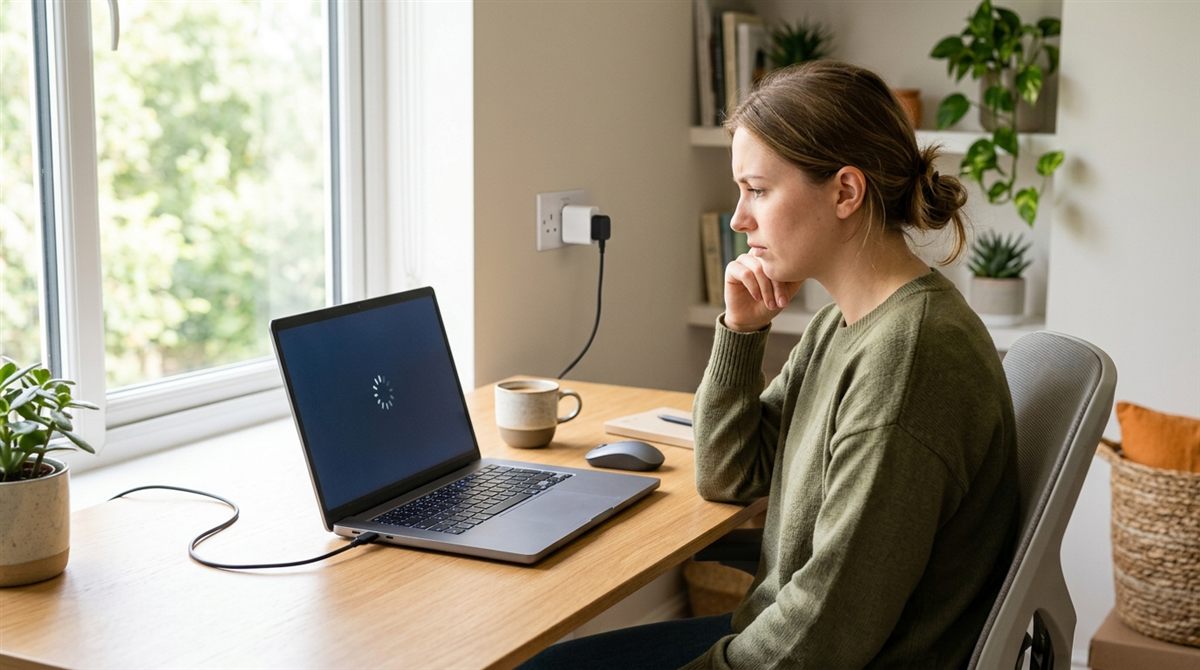
If your laptop stutters, lags or behaves strangely while charging, or only feels slow when it’s unplugged, there’s almost always a specific cause. Work through these from most to least common.
In this article
If it’s slow on battery but fine when plugged in
This is normal, by design. On battery, Windows and laptop makers limit processor and GPU power to save energy. To change it:
- Go to Settings → System → Power & battery → Power mode. Windows remembers separate settings for “on battery” and “plugged in”, so set Balanced or Best performance while on battery.
- Check that Energy saver isn’t switched on (Quick Settings, Win + A).
- Gaming laptops switch to the integrated GPU and limit power on battery. Expect lower performance, and game plugged in.
- On a Mac, check that Low Power Mode isn’t set to “Always” in System Settings → Battery.
If it’s slow or laggy while charging
1. The charger is too weak
A low-wattage USB-C charger (a 20–30W phone charger, for example) can’t supply enough power, so the laptop throttles to avoid draining the battery. Windows may show a “slow charger” warning. Use the original charger or one with at least the same wattage, and a cable rated for 60W or 100W+. A USB-C power meter shows exactly what you’re getting.
2. Heat
Charging generates heat inside the laptop. Combined with heavy use, it can push temperatures high enough to throttle the CPU. Get the laptop onto a hard surface, raise the back, and clean the vents. See how to check laptop temperature and how to stop overheating.
3. A worn battery
Some laptops throttle the processor hard when the battery is failing (Dell and HP laptops are known for this, sometimes reported as “BD PROCHOT” throttling). Generate a battery report. If health is very low, a replacement battery often restores normal speed.
4. Outdated BIOS or drivers
Update the BIOS, chipset and graphics drivers using your manufacturer’s tool (Lenovo Vantage, MyASUS, Dell SupportAssist, HP Support Assistant). Power-management bugs are a common fix in these updates.
If the touchpad or mouse goes jumpy only when charging
This is usually electrical noise from an ungrounded (two-prong) charger or a faulty outlet, not a software problem. Try:
- Plugging into a different outlet, preferably a grounded three-prong one, or using the charger’s three-prong cable if it came with one.
- Using the original charger instead of a cheap replacement.
- Seeing whether the problem stops when you touch a metal part of the laptop. If so, it’s grounding.
If Windows says “Plugged in, not charging”
Check whether you’ve turned on a battery charge limit (Lenovo Conservation Mode, ASUS Battery Care, etc.). That message is normal when the battery is at its limit. If no limit is set, try a different charger, update the BIOS, or open Device Manager → Batteries, uninstall Microsoft ACPI-Compliant Control Method Battery, and restart.
Still slow?
If performance is poor regardless of power, the cause is probably elsewhere. Try how to speed up a slow laptop or laptop slow after a Windows update.
Not charging at all, or stuck at 80%? See laptop plugged in but not charging.