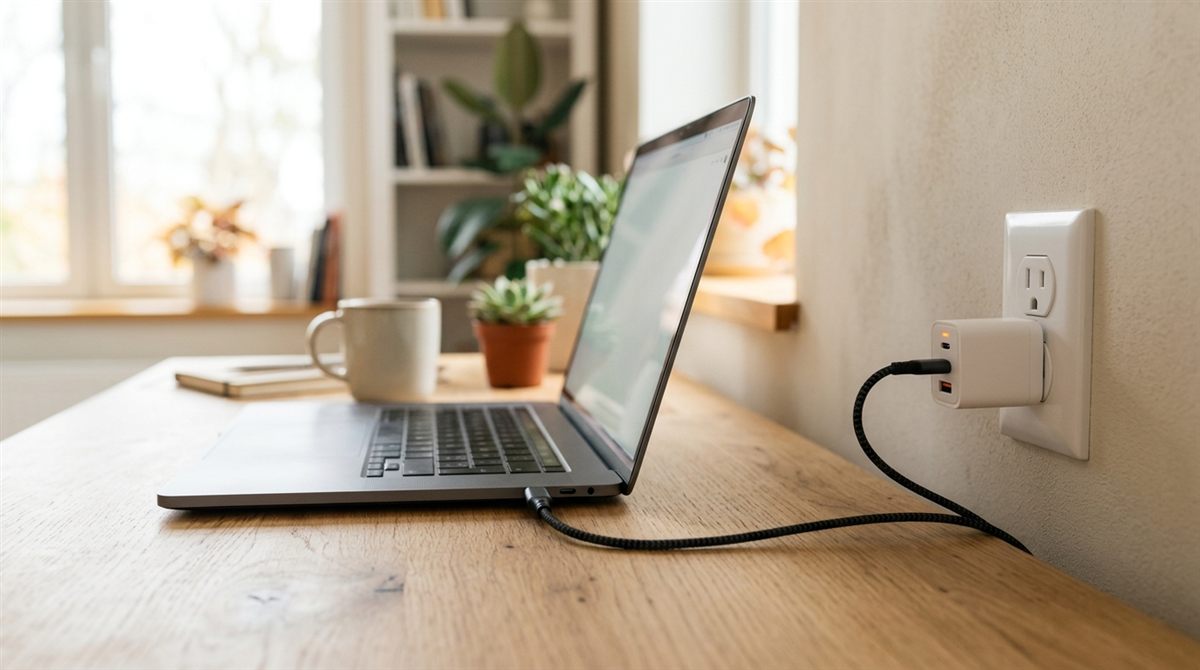
Laptop plugged in but not charging? Before you buy a new charger, check one thing: many laptops deliberately stop charging at 80% to protect the battery. If yours says “Plugged in, not charging” or stops at 80%, that may be a feature, not a fault. Here’s how to tell, and how to fix real charging problems.
Quick fixes to try first
- Check for a battery charge limit in your laptop’s app (details below). It’s the most common “not charging” cause on new laptops.
- Try a different wall outlet and look at the charger’s light.
- Unplug the charger, hold power for 30 seconds, then plug back in and restart.
In this article
Stuck at 80% (or 60%)? It’s probably a charge limit
Most manufacturers include a setting that holds the battery at 80% (sometimes 60%) when you’re plugged in most of the time, because it makes the battery last years longer. Where to find it:
- Lenovo: Lenovo Vantage → Device → Power → Conservation Mode or charge thresholds.
- ASUS: MyASUS → Customization → Battery Care / Battery Health Charging.
- Dell: Dell Power Manager / Dell Optimizer, or BIOS → Battery Configuration (Primarily AC Use or Custom).
- HP: BIOS (F10 at startup) → Battery Health Manager.
- Microsoft Surface: Surface app → Battery & charging → Smart Charging.
- Mac: System Settings → Battery → (i) next to Charging → Charge Limit, or Optimized Battery Charging. Choose “Charge to Full Now” from the battery menu when you need 100%.
Need a full charge for a trip? Turn the limit off temporarily. Our guide to keeping a laptop plugged in explains why the limit is worth keeping on.
If it really isn’t charging
1. Check the outlet, charger and cable
- Try a wall outlet you know works, without a power strip.
- Look for a light on the charger brick or the laptop’s charging port.
- Inspect the cable for fraying near the plug and brick. Bent or damaged cables are a top cause.
- Make sure the plug is fully seated. Barrel connectors can wear loose over time.
2. USB-C laptops: port, wattage and cable matter
- Not every USB-C port charges. Look for a lightning-bolt or battery icon, or check the manual.
- The charger must provide enough watts. A 20–30W phone charger can’t charge most laptops, and Windows may show a “slow charger” warning.
- The cable must be rated for laptop power (60W, 100W or 240W). Many cheap USB-C cables aren’t.
- Docks and monitors with USB-C charging may deliver less power than the laptop needs under load.
Need a replacement? See our recommended USB-C chargers and cables.

3. Reset the battery and power management
- Shut down, unplug the charger, and hold power for 30 seconds.
- Plug the charger back in and start the laptop.
- In Windows, right-click Start → Device Manager → Batteries, right-click Microsoft ACPI-Compliant Control Method Battery → Uninstall device, then restart. Windows reinstalls it automatically.
- Update the BIOS and chipset drivers from your laptop maker. Charging bugs are often fixed in firmware. See how to update drivers and BIOS safely.
4. Check battery health
A worn-out battery may stop charging or charge only a few percent. Generate a battery report. If full charge capacity is far below design capacity, it’s time for a replacement.
5. Heat
Laptops pause charging when the battery is too hot or too cold. Let it cool down on a hard surface, and charge in a normal room temperature.
Signs it’s hardware
- The charger light goes off when you plug it into the laptop: a short in the port or laptop.
- Charging only works if you hold the plug at an angle: a worn charging port. A repair shop can usually replace it.
- Dell laptops showing “AC adapter type cannot be determined”: often a faulty charger or its center pin.
- A swollen battery (lifting trackpad, bulging case): stop using it and replace the battery.
FAQ
Is it bad that my laptop says “Plugged in, not charging”?
Not if a charge limit is on. The laptop runs from the charger and preserves the battery. If no limit is set and the battery is low, work through the steps above.
Can I use a phone charger for my laptop?
Only a high-wattage USB-C PD charger (usually 45–100W). Phone chargers are too weak for most laptops.