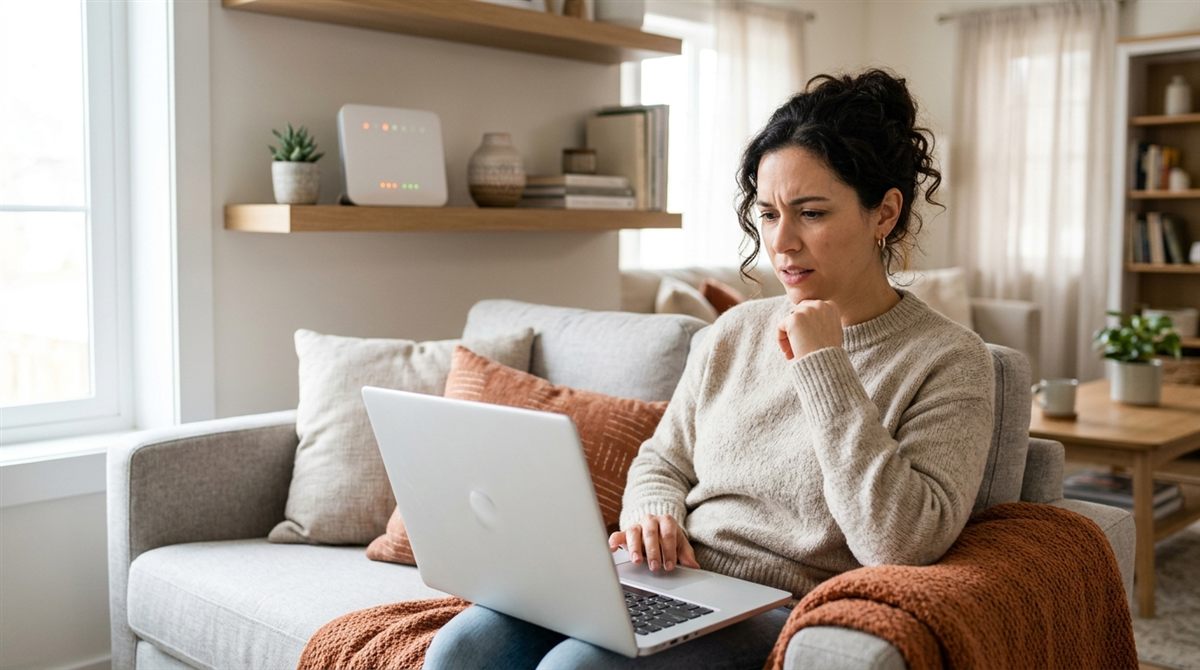
If your laptop won’t connect to Wi-Fi, but your phone connects fine, the problem is almost certainly the laptop’s settings or driver, not your internet. These fixes are ordered from fastest to most thorough, with steps for Windows 11, Windows 10 and Mac.
Quick fixes to try first
- Check that Airplane mode is off and Wi-Fi is on (Quick Settings: Win + A). Some laptops have a Wi-Fi key or F-key with an antenna icon.
- Restart the laptop, and unplug the router for 30 seconds.
- Forget the network and reconnect, re-entering the password carefully.
In this article
Figure out which problem you have
- The network doesn’t appear at all: a Wi-Fi switch, adapter or driver problem, or the router’s band (see Wi-Fi 6E/7 note below).
- It connects but says “No internet”: an IP/DNS problem, a captive portal (hotel or café login page), or the router itself.
- It drops out constantly: power-saving settings, distance from the router, or the driver.
- Only this laptop has trouble: it’s the laptop. If every device struggles, restart the router or call your internet provider.
1. Forget the network and reconnect
Windows 11: Settings → Network & internet → Wi-Fi → Manage known networks → select your network → Forget. Then reconnect and enter the password. This fixes most problems that start after a router change or password change.
2. Run the network reset commands
Right-click Start → Terminal (Admin) and run these one at a time, then restart:
ipconfig /releaseipconfig /renewipconfig /flushdnsnetsh winsock resetnetsh int ip reset
3. Use Network reset (Windows 11)
Settings → Network & internet → Advanced network settings → Network reset → Reset now. This reinstalls network adapters and resets settings to defaults. It restarts your laptop, and you’ll need to re-enter Wi-Fi passwords and reinstall VPN software.

4. Update, roll back or reinstall the Wi-Fi driver
- Right-click Start → Device Manager → expand Network adapters.
- Find your Wi-Fi adapter (Intel Wi-Fi, Realtek, MediaTek, Qualcomm).
- If Wi-Fi broke after an update: right-click → Properties → Driver → Roll Back Driver.
- Otherwise: download the latest Wi-Fi driver from your laptop maker’s support site (use your phone or another PC), or right-click → Uninstall device and restart to reinstall it.
Don’t see a Wi-Fi adapter at all? Check the BIOS for a disabled wireless setting, or the adapter may have failed. A cheap USB Wi-Fi adapter is a quick workaround.
5. Stop Windows from turning off Wi-Fi to save power
In Device Manager, right-click the Wi-Fi adapter → Properties → Power Management → untick “Allow the computer to turn off this device to save power”. This often fixes Wi-Fi that drops after sleep.
6. “Connected, no internet” fixes
- At a hotel, airport or café: open a browser and go to any website, such as
neverssl.com, to trigger the login page. - Change DNS: Settings → Network & internet → Wi-Fi → your network’s hardware properties → DNS server assignment → Edit → set manually to Cloudflare (1.1.1.1) or Google (8.8.8.8).
- Disable VPN or security software temporarily to test.
- Check the date and time. A wrong clock breaks secure websites.
Wi-Fi 6E and Wi-Fi 7 routers
Newer routers can broadcast a 6GHz band that older laptops can’t see. If your network is missing, connect to the router’s 2.4GHz or 5GHz network instead, or enable those bands in the router’s settings. Some mesh systems with “smart connect” also confuse older adapters. Splitting the bands into separate network names can help.
On a Mac
- Click the Wi-Fi icon, turn Wi-Fi off and on, and reconnect.
- System Settings → Wi-Fi → click the (…) next to your network → Forget This Network, then reconnect.
- Open your network’s Details → TCP/IP → Renew DHCP Lease.
- Restart the Mac and router. Install macOS updates.
Need internet right now?
Share your phone’s connection with USB tethering. It works even when the laptop’s Wi-Fi is broken, so you can download drivers.
FAQ
Why does my phone connect but my laptop doesn’t?
Your internet is working, so the issue is the laptop: usually a stale saved network, a driver problem after an update, or power-saving settings. Steps 1–5 fix most cases.
Why did Wi-Fi stop working after a Windows update?
Updates sometimes install a generic driver. Roll back the driver (step 4) or install the one from your laptop maker. See also problems after a Windows update.