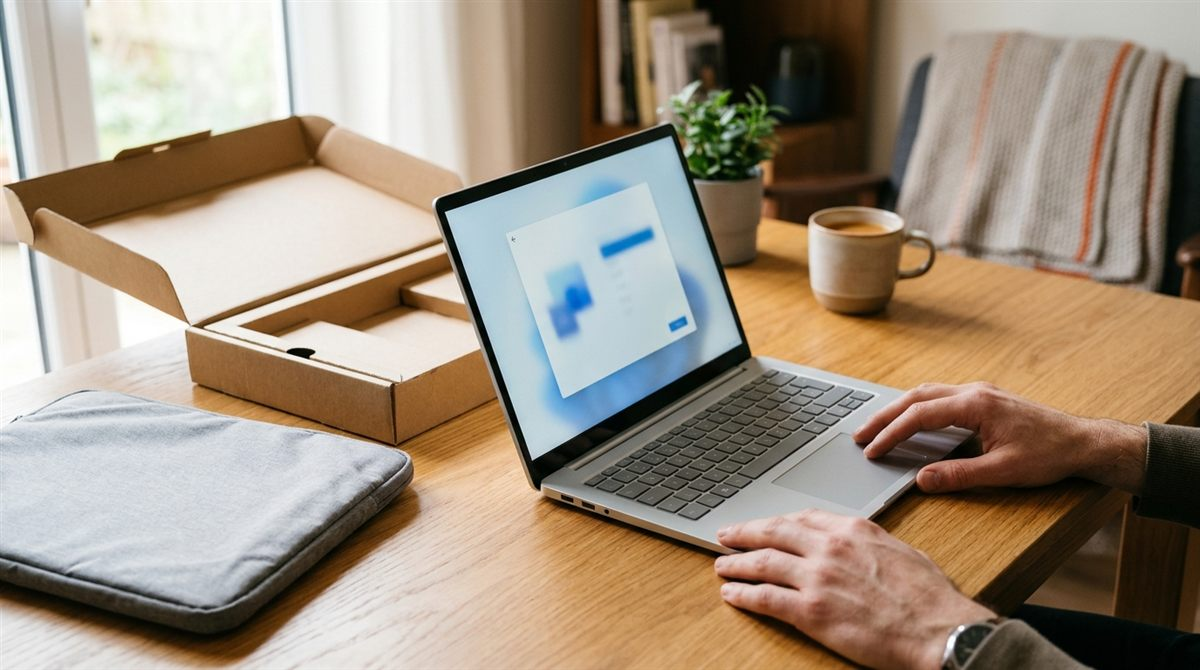
A new laptop is exciting, but the first hour decides how it runs for years. Rush through setup and you end up with trial software popping up, updates restarting it at bad moments, files stuck on the old computer and no backup. Setting it up properly takes about an hour on Windows 11 and less on a Mac or Chromebook, and most of it is waiting for downloads.
Quick answer
- Plug it in and connect to Wi-Fi before you start. Windows 11 and ChromeOS need internet to finish setup.
- Sign in with your account (Microsoft, Apple or Google) so settings, passwords and backups follow you.
- Run every update, including the manufacturer’s driver and firmware updates, then restart.
- Remove trial software, move your files over, and turn on backup and Find my device.
In this article
Before you start: 5 minutes of prep
- Plug in the charger. Updates download and install for a while, and some won’t install on battery. You don’t need to fully charge a new laptop first; modern lithium-ion batteries don’t need “conditioning”.
- Have your Wi-Fi password and your account password ready: a Microsoft account for Windows, an Apple Account for a Mac, or a Google account for a Chromebook. If you’ve lost one, reset it on your phone first; that’s much easier than doing it halfway through setup.
- Have your phone nearby. Two-step verification codes, passkeys and Android’s Quick Start all use it.
- Keep the box and receipt. Most stores have a 14–30 day return window (often longer for holiday purchases). Use those days to check the screen, keyboard, speakers and ports.
- Back up the old laptop if you’re replacing one. See how to back up a laptop.
1. Set up a Windows 11 laptop
The first time you turn it on, Windows shows a series of setup screens (Microsoft calls this the “out-of-box experience”). The exact order varies by manufacturer, but you’ll see these steps:
- Region and keyboard layout. Pick your country and keyboard (US for most American buyers). Skip the second keyboard layout unless you type in another language.
- Connect to Wi-Fi. Choose your network and enter the password. Windows may download setup updates and restart once here; let it.
- Name your device. Something like “Sam-Laptop” makes it easy to find later on your network and in your Microsoft account.
- Sign in with a Microsoft account. Windows 11 Home and Pro both require one during setup. The account connects your OneDrive, saves your BitLocker recovery key, and lets you locate the laptop if it’s lost.
- Create a PIN. Windows Hello uses a PIN (and face or fingerprint sign-in if the laptop has them) instead of your account password. The PIN only works on this laptop, which makes it safer than typing your password every day.
- Restore or set up as new. If you used Windows Backup on your old PC, Windows offers to restore its settings, Wi-Fi networks, pinned apps and files from OneDrive. Otherwise choose Set up as a new PC.
- Privacy settings. Read each toggle. Location and Find my device are worth keeping on; you can safely switch off tailored experiences, advertising ID and optional diagnostic data.
- Offers. You’ll likely be asked about Microsoft 365, OneDrive storage, Game Pass and your phone. Choose Skip or No thanks for anything you don’t want; you can add them later.
Can you still set up Windows 11 without a Microsoft account?
Not easily. Microsoft has steadily removed the known setup workarounds; as of October 2026 the old tricks (the oobe\bypassnro command, start ms-cxh:localonly and the “Learn more” link on the sign-in screen) no longer work on current Windows 11 setup. The reliable option is to finish setup with a Microsoft account, then go to Settings > Accounts > Your info and choose Sign in with a local account instead. Before you do, make sure your BitLocker recovery key is saved somewhere (see the security section below).
Update Windows and drivers
New laptops have often sat in a warehouse for months, so they’re behind on updates. Open Settings > Windows Update, click Check for updates and install everything. Restart, and repeat until it says you’re up to date. Then open Advanced options > Optional updates and install any driver updates listed there.
Next, open the manufacturer’s app that came preinstalled: Lenovo Vantage, HP Support Assistant (or myHP), Dell SupportAssist, MyASUS or Acer Care Center. Run its update check for BIOS, firmware and driver updates, which Windows Update doesn’t always deliver. More detail in how to update laptop drivers and BIOS. While you’re in the app, register the laptop to activate the warranty.
Remove trial software and slim down startup
- Go to Settings > Apps > Installed apps and uninstall anything you won’t use: trial antivirus (McAfee and Norton trials are common), casual games, and duplicate “helper” apps. Don’t remove anything with Intel, AMD, NVIDIA, Realtek or your laptop maker’s name in it unless you know what it is.
- Go to Settings > Apps > Startup and switch off anything that doesn’t need to launch when you sign in. Our guide to disabling startup programs explains what’s safe to turn off.
- Windows Security is already built in and on, so you don’t need to buy antivirus. See do you need antivirus.

Settings worth changing on day one
- Active hours: Settings > Windows Update > Advanced options > Active hours, so updates don’t restart it while you’re working.
- Find my device: Settings > Privacy & security > Find my device > On.
- Default browser and apps: install the browser you prefer, then set it in Settings > Apps > Default apps.
- Power mode: Settings > System > Power & battery. “Balanced” is right for most people; see our battery life tips for more.
- Display scale: if text looks too small, raise Settings > System > Display > Scale.
2. Set up a Mac
Apple’s Setup Assistant is the simplest of the three. Press any key or open the lid to start, then:
- Choose your language and country, and turn on any accessibility features you need (VoiceOver, Zoom and others are available from the first screen).
- Connect to Wi-Fi.
- Transfer your information with Migration Assistant. You can copy everything from another Mac, a Time Machine backup or a Windows PC. For a Mac-to-Mac move, keep both machines on the same network and plugged in; a large library can take a few hours. Choose Not now to start fresh.
- Sign in with your Apple Account. This brings across iCloud Photos, Messages, Keychain passwords and anything else you sync from your iPhone.
- Create your computer account and set up Touch ID.
- Turn on FileVault when asked. It encrypts the drive; let your iCloud account unlock it so you can recover access if you forget your password.
- Choose screen time, Siri and Apple Intelligence options, and a light or dark appearance.
Afterwards, open System Settings > General > Software Update and install anything waiting. Then check that Find My Mac is on (System Settings > your name > iCloud) and plug in an external drive to set up Time Machine (System Settings > General > Time Machine).
3. Set up a Chromebook
- Choose your language and accessibility options, then connect to Wi-Fi.
- Accept Google’s terms. The Chromebook checks for an update and may restart.
- Choose who it’s for: you, a child (which sets up Family Link parental controls) or work.
- Use Quick Start if you have an Android phone: scan the code on the screen to copy your Wi-Fi details and Google account sign-in. Otherwise, sign in with your Google account password.
- Sync your apps and settings and connect your Android phone if you want texts and notifications on the laptop.
Then go to Settings > About ChromeOS > Check for updates. While you’re there, open Additional details to see the update schedule: the date the Chromebook stops receiving updates. Your apps, bookmarks and passwords all come from your Google account, so there’s nothing else to move.
Move your files from the old laptop
Windows used to include a direct PC-to-PC transfer during setup, but Microsoft removed it with the October 2026 update. Your options now:
- Windows Backup and OneDrive: on the old PC, open the Windows Backup app and back up folders, settings and apps, then restore during setup on the new laptop. Free OneDrive storage is only 5GB, so it works best for small libraries or if you already pay for Microsoft 365. Installed programs aren’t reinstalled automatically; Windows pins them so you can download them again.
- An external drive or USB stick: copy Documents, Desktop, Pictures, Music, Videos and Downloads across. This is the fastest and free option for large photo and video libraries; a portable SSD makes it quick.
- Cloud storage you already use (OneDrive, Google Drive, iCloud or Dropbox): sign in on the new laptop and let it sync.
Our step-by-step guide to transferring files from laptop to laptop covers each method in detail, including Mac and Windows moves. Don’t wipe the old laptop until you’ve opened a few important files on the new one.
Protect it: security, encryption and backup
- Find your recovery key. Most new Windows 11 laptops turn on device encryption (BitLocker) automatically when you sign in with a Microsoft account. The key is saved at account.microsoft.com/devices/recoverykey. Write it down or save it somewhere off the laptop; without it, a firmware update or repair can lock you out. Our guide to the BitLocker recovery key screen explains why.
- Turn on backups on day one, not after something goes wrong: Windows Backup or File History on Windows, Time Machine on a Mac. Chromebooks keep almost everything in your Google account.
- Make a recovery drive (Windows): search the Start menu for Create a recovery drive and use an empty USB drive. A 32GB drive is the safe choice. If Windows ever refuses to start, this gets you back in.
- Use two-step verification on the account you signed in with, since it now controls your laptop too.
Final checks before the return window closes
- Open a plain white or black full-screen image and look for dead pixels, bright spots or uneven backlighting.
- Test every key, the touchpad, the webcam, the microphone and the speakers.
- Plug something into every port, including the charger in each USB-C port that supports charging.
- Check the battery is healthy: on Windows, run a battery report as shown in how to check laptop battery health.
- Add a few things that make daily use nicer, such as a mouse, sleeve or stand. Our best laptop accessories list has ideas.
FAQ
How long does it take to set up a new laptop?
Plan on 30–60 minutes for a Windows 11 laptop including updates, about 20–30 minutes for a Mac or Chromebook, plus however long it takes to copy your files.
Can I set up a new laptop without internet?
Windows 11 Home and Pro and ChromeOS need an internet connection to finish setup. A Mac can be set up offline and connected later. If you have no Wi-Fi, most phones can share their connection; see USB tethering.
Should I fully charge a new laptop before using it?
No. Lithium-ion batteries don’t need an initial full charge. Just keep it plugged in during setup so updates can install.
Do I need to buy antivirus for a new laptop?
No. Windows Security is built into Windows 11, and Macs and Chromebooks have their own protection. Remove the trial antivirus if you don’t plan to pay for it, because two security programs can slow the laptop down.
What should I do with my old laptop?
Once your files are safely on the new one, sign out of your accounts, then reset it. On Windows, follow our guide to factory resetting a Windows laptop and choose Remove everything before selling or donating it.