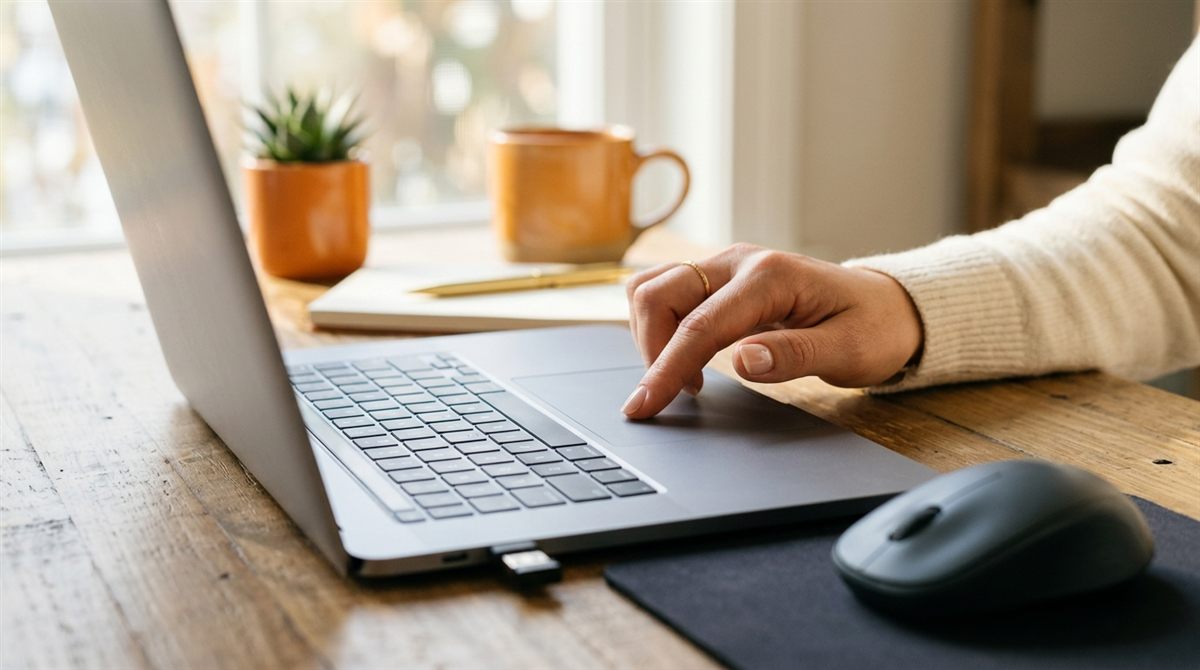
A touchpad that suddenly stops working is usually just disabled, not broken. Work through these fixes in order. Plug in a USB or Bluetooth mouse first if you have one, as it makes everything easier.
In this article
1. Check the touchpad toggle key
Most laptops have a function key that turns the touchpad on and off. It usually shows a touchpad icon, often F6, F7, F9 or F5 (sometimes with Fn). Press it once and test. Some HP laptops toggle the touchpad by double-tapping its top-left corner (look for a small light).
2. Check Windows settings
- Go to Settings → Bluetooth & devices → Touchpad.
- Make sure Touchpad is on.
- Expand it and check Leave touchpad on when a mouse is connected. If this is off, plugging in a mouse disables the touchpad.
No mouse? Press the Windows key, type “touchpad”, press Enter, then use Tab and Space to reach and toggle the switch.
3. Restart the laptop
A full restart (not shutdown, because Fast Startup skips a real reset) fixes many driver glitches.
4. Re-enable or reinstall the driver
- Right-click Start → Device Manager.
- Expand Mice and other pointing devices and Human Interface Devices.
- If you see your touchpad (e.g. “HID-compliant touch pad”, Synaptics, ELAN, Precision Touchpad) with a down-arrow icon, right-click → Enable device.
- If it has a warning icon, right-click → Uninstall device, then restart. Windows reinstalls the driver.
5. Install the manufacturer’s driver
Download the latest touchpad (and chipset/serial IO) driver from your laptop maker’s support page using your model number, or use their support app: Lenovo Vantage, MyASUS, Dell SupportAssist, HP Support Assistant. This often fixes touchpads that stopped working after a Windows update or clean install.
6. Check the BIOS
Some laptops can disable the touchpad in the BIOS/UEFI. Restart and press the setup key (often F2, F1 or Del), then look under “Advanced”, “Config” or “Keyboard/Mouse” for a touchpad or internal pointing device setting. If the touchpad doesn’t work in the BIOS either, it’s likely a hardware problem.
Touchpad jumpy or erratic?
- Clean it with a slightly damp microfiber cloth. Oils and moisture affect sensitivity.
- If it only happens while charging, it’s usually electrical noise from the charger or outlet. See laptop problems when charging.
- Adjust sensitivity in Settings → Bluetooth & devices → Touchpad → Taps.
Warning: a raised or clicking-hard touchpad
If the touchpad is lifting, won’t click, or the laptop no longer sits flat, the battery underneath may be swelling. Stop using the laptop and get the battery replaced. See battery health warning signs.
Related: how to right-click, copy and paste, and zoom on a laptop · keyboard not working