226
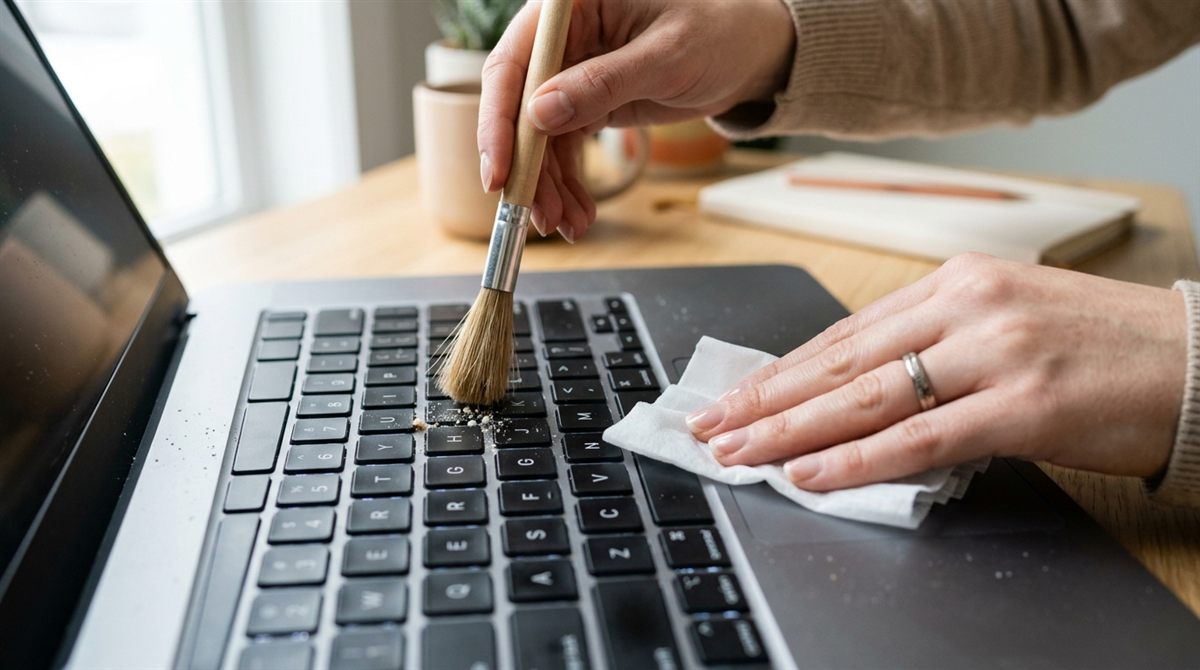
Laptop keyboards collect crumbs, dust, skin oils and a surprising number of germs. Here’s how to clean one safely, from a quick weekly wipe to fixing sticky keys and handling spills.
In this article
What you need
- An electric air duster or can of compressed air
- 70% isopropyl alcohol wipes, or a microfiber cloth with a little 70% isopropyl alcohol
- Cotton swabs and a soft brush
- A microfiber cloth
Quick clean (weekly, 2 minutes)
- Shut down and unplug the laptop.
- Hold the laptop open, upside down or tilted at about 75°, and gently tap or shake it to dislodge crumbs.
- Wipe the key tops and palm rest with a slightly damp microfiber cloth or an alcohol wipe that’s been squeezed so it isn’t dripping.
- Dry with a clean cloth.
Deep clean (monthly)
- Shut down and unplug.
- Hold the laptop at a 75° angle and blow air between the keys in short bursts, moving left to right across each row. Apple recommends doing this from three angles: tilted forward, then on its right side, then on its left side.
- Hold the can upright. Tilting a compressed-air can sprays freezing liquid propellant.
- Use a cotton swab lightly dampened with isopropyl alcohol to clean around the edges of each key.
- Wipe the whole keyboard and palm rest, then let it dry for a few minutes before powering on.
Fixing sticky or unresponsive keys
- Debris under a key: blow air under the key from several angles while pressing it down repeatedly.
- Sticky from a dried drink: dip a cotton swab in isopropyl alcohol (which evaporates quickly), squeeze out the excess, and work it around the key while pressing it. Repeat until the key moves freely.
- Removing a keycap: possible on many Windows laptops (gently pry from one corner with a plastic tool), but keycap clips are fragile, and on modern MacBooks it’s easy to break them. Look up a guide for your exact model, or skip this step.
- Keys still not working after cleaning: try an external keyboard. If that works, the laptop keyboard may need repair. If specific keys type the wrong thing, check for driver or language settings issues.
If you spill on your laptop
- Turn it off immediately (hold the power button) and unplug it. Speed matters more than anything else.
- Turn it upside down in a tent shape (open about 90°, keys facing down) to let liquid drain out.
- Blot, don’t wipe. Remove any accessories.
- Leave it off for at least 48 hours. Don’t use a hair dryer (heat can damage components), and skip the rice bowl, which does nothing useful and adds dust.
- For sugary drinks, coffee with milk, or anything that reached the inside, take it to a repair shop. Residue causes corrosion over the following weeks even if the laptop seems fine.
Spills are one of the main reasons laptops die early. If you drink at your desk, an accidental-damage plan is worth considering.
Things not to do
- Don’t use a vacuum cleaner on the keyboard. It can create static and suck up loose keycaps.
- Don’t spray any liquid directly onto the keyboard.
- Don’t use household cleaners or bleach wipes, which can remove key legends and coatings.
Related: cleaning the screen · laptop cleaning schedule · touchpad not working?