New to laptops, or switching from a desktop or Mac? These are the everyday basics people search for most: how to right-click without a mouse, copy and paste, zoom in and out, and a few shortcuts that make life easier.
In this article
How to right-click on a laptop
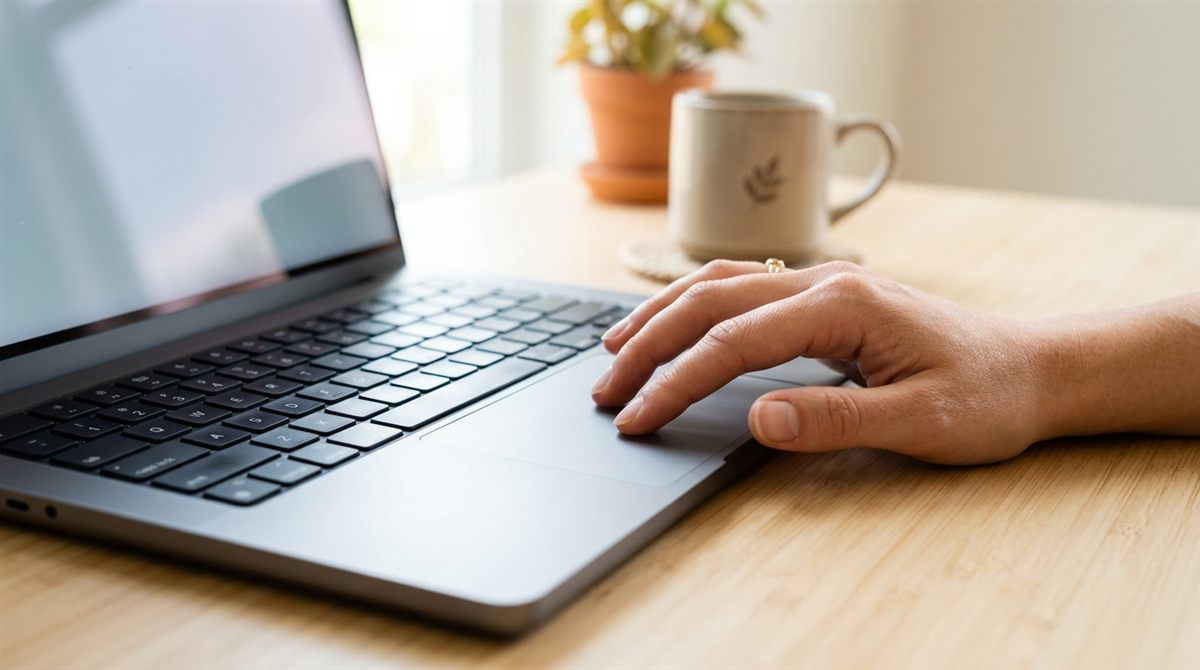
- Two-finger tap (or two-finger click) on the touchpad. This works on almost all modern Windows laptops, Macs and Chromebooks.
- Press the bottom-right corner of the touchpad, on Windows laptops with a one-piece “clickpad”.
- Keyboard: press Shift + F10, or the Menu key (a key with a little list icon, on some laptops).
- Mac: two-finger click, or hold Control and click.
- Chromebook: two-finger tap, or Alt + click.
Right-click not working? Check Settings → Bluetooth & devices → Touchpad → Taps and turn on “Tap with two fingers to right-click”. More touchpad fixes: touchpad not working.
How to copy and paste on a laptop
| Action | Windows / Chromebook | Mac |
|---|---|---|
| Copy | Ctrl + C | Cmd + C |
| Cut | Ctrl + X | Cmd + X |
| Paste | Ctrl + V | Cmd + V |
| Paste without formatting | Ctrl + Shift + V | Cmd + Shift + Option + V |
| Select all | Ctrl + A | Cmd + A |
| Undo | Ctrl + Z | Cmd + Z |
Without a mouse: select text by holding Shift and pressing the arrow keys, then copy with Ctrl + C. Clipboard history: press Win + V on Windows to see and paste things you copied earlier (turn it on the first time).

How to zoom in and out on a laptop
- Web pages and documents: Ctrl + Plus to zoom in, Ctrl + Minus to zoom out, Ctrl + 0 to reset (Cmd on Mac).
- Touchpad: pinch two fingers together to zoom out, spread them apart to zoom in.
- Mouse: hold Ctrl and scroll the wheel.
- Everything on screen too big or small? Change display scaling: Settings → System → Display → Scale (100%, 125%, 150%).
- Magnifier for reading small text: Win + Plus turns it on, Win + Esc turns it off. On Mac, use Accessibility → Zoom.
Other essential shortcuts
- Win + L: lock your laptop instantly (Mac: Ctrl + Cmd + Q).
- Alt + Tab: switch between open apps (Mac: Cmd + Tab).
- Win + D: show the desktop.
- Win + E: open File Explorer.
- Win + Shift + S: screenshot. See all screenshot methods.
- Win + Left/Right arrow: snap windows side by side. See split screen.
- Ctrl + Shift + Esc: open Task Manager when something freezes. See laptop frozen.
What’s the Fn key?
The Fn (function) key changes what the top row does. Usually the top row controls volume, brightness and so on, and holding Fn makes them act as F1–F12, or the reverse. Press Fn + Esc on most laptops to switch the default (Fn Lock).
FAQ
How do I right-click on a laptop without a mouse?
Tap the touchpad with two fingers, press its bottom-right corner, or press Shift + F10 on the keyboard.
Why is everything zoomed in on my laptop?
Either a web page is zoomed (press Ctrl + 0), the Magnifier is on (Win + Esc), or display scaling is set high (Settings → System → Display → Scale).