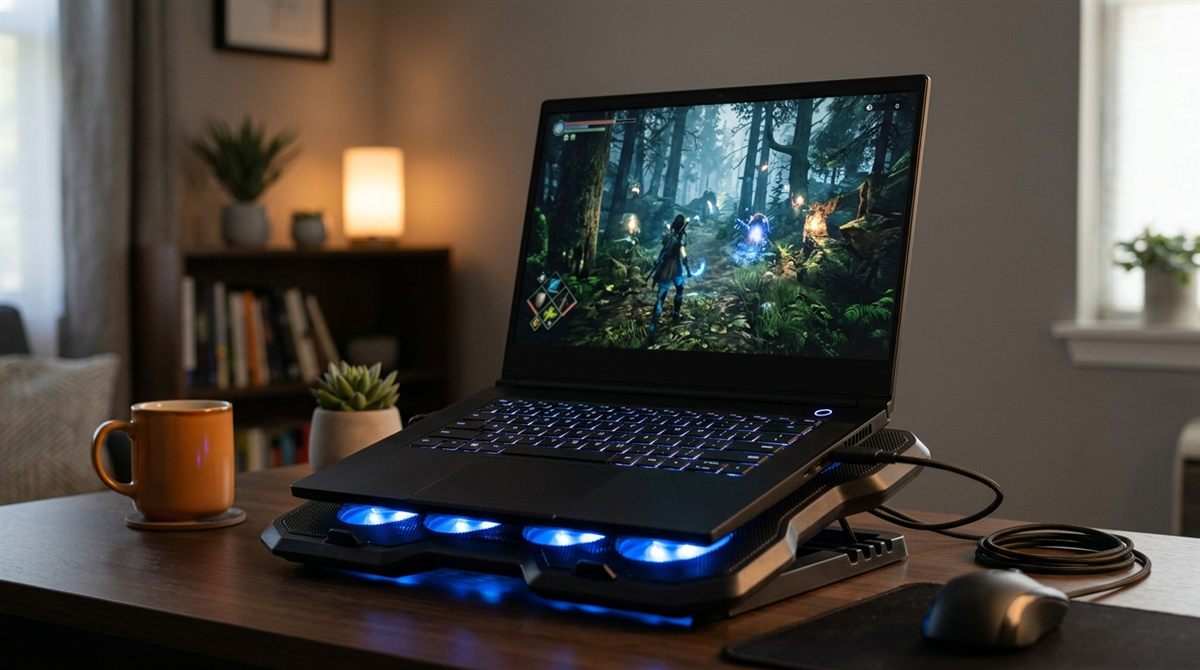
Gaming laptops pack desktop-class chips into a thin case, so they run hot by design. CPU temperatures of 85–95°C under load are normal for many models. The problem is when heat causes throttling (frame rates dropping after a few minutes), sudden shutdowns, or a keyboard too hot to touch. These fixes are ordered from free and easy to more involved.
In this article
First: is it actually overheating?
Measure before you fix. Use a tool like HWiNFO to log temperatures while gaming (here’s how). Warning signs:
- CPU or GPU hitting its limit (often 95–105°C for CPUs, ~87°C+ for NVIDIA laptop GPUs) and clock speeds dropping
- FPS that starts high and falls after 5–10 minutes
- The laptop shutting off mid-game
1. Give it room to breathe (free)
- Play on a hard, flat surface, never a bed, pillow, blanket or your lap.
- Most gaming laptops pull air in from the bottom. Raising the back by 2–3cm with a stand, or even a book under the rear edge, can noticeably lower temperatures.
- Keep the rear and side exhausts clear of walls and objects.
2. Use the right performance mode (free)
Every gaming laptop has a control app: Armoury Crate (ASUS), Lenovo Vantage / Legion Space, Omen Gaming Hub (HP), NitroSense / PredatorSense (Acer), MSI Center, Alienware Command Center.
- “Turbo/Performance” mode runs fans at maximum for the highest frame rates.
- “Balanced” is quieter but may throttle sooner.
- Many apps let you set a custom fan curve so fans ramp up earlier.
3. Cap your frame rate (free, very effective)
If your GPU is rendering 200 FPS on a 144Hz screen, it’s generating heat for frames you can’t see. Cap FPS to your screen’s refresh rate (or a bit lower) in the game settings or the NVIDIA app. Enabling DLSS or frame generation also reduces load at the same visual quality. This can cut temperatures and fan noise dramatically.
4. Clean the vents and fans (5 minutes)
Dust on the heatsink fins is the number one cause of a gaming laptop getting hotter over time. Blow it out every few months. See how to clean a laptop fan without opening it.
5. Use a cooling pad, but choose the right type
Basic open cooling pads mainly help by raising the laptop and typically lower temperatures by a few degrees. “Turbo-fan” pads with a sealed gasket, such as the llano V12, force air directly into the intakes and are much more effective on gaming laptops. More picks: laptop accessories worth buying.
6. Update drivers and BIOS
GPU drivers, the laptop control app and the BIOS often include fan-control and power-management improvements. Update through the NVIDIA app or your manufacturer’s support tool.
7. Undervolt (advanced)
Reducing CPU voltage slightly can cut heat without losing performance. Many recent Intel laptops lock undervolting for security reasons, but some AMD laptops allow “Curve Optimizer” through the BIOS or tools. For the GPU, MSI Afterburner can set a lower voltage curve. Only try this if you’re comfortable testing stability.
8. Replace thermal paste (advanced)
After 2–3 years, the factory thermal paste on a gaming laptop can dry out. Repasting with Arctic MX-6 (or replacing worn thermal pads) often drops temperatures by 5–15°C on older laptops. Some laptops use liquid metal from the factory, which should not be replaced with paste. Check your model, or use a repair shop.
Laptop fan loud but not hot?
A fan that roars while the laptop is cool or idle usually has a software cause:
- Something is using the processor in the background. Open Task Manager (Ctrl + Shift + Esc) and sort by CPU. Windows Update, antivirus scans, OneDrive syncing and search indexing are common. These calm down once they finish.
- Performance mode: gaming and creator laptops run fans harder in “Performance” or “Turbo” mode. Switch to Balanced or Quiet in your laptop’s control app, or set Settings → System → Power & battery → Power mode to Balanced.
- Loud when plugged in or charging: many laptops raise performance (and fan speed) on AC power, and charging adds heat. Try a Balanced power mode when plugged in. See laptop behaviour when charging.
- Buzzing, grinding or rattling: that’s a mechanical noise. Dust or a worn fan bearing is the likely cause. Clean the vents (how to clean a laptop fan), and if it continues, the fan may need replacing. It’s usually an inexpensive repair.
- Update the BIOS: fan curves are often improved in firmware updates. See how to update BIOS safely.
Also check the room
Laptop temperatures rise roughly in step with room temperature. Gaming in a 30°C room in summer will always run hotter than in a 20°C room in winter.
Related: best gaming laptops (some cool much better than others) · laptop slow when charging?
If your laptop is shutting itself off or restarting rather than just running hot, see why a laptop keeps shutting off or restarting randomly.