269
Too many programs launching at startup is one of the most common reasons a laptop takes ages to boot and feels sluggish afterwards. Disabling them is safe, reversible, and takes two minutes.
In this article
How to disable startup programs in Windows 11/10
Method 1: Settings
- Open Settings → Apps → Startup.
- Sort by Startup impact.
- Toggle off anything you don’t need running the moment you log in.
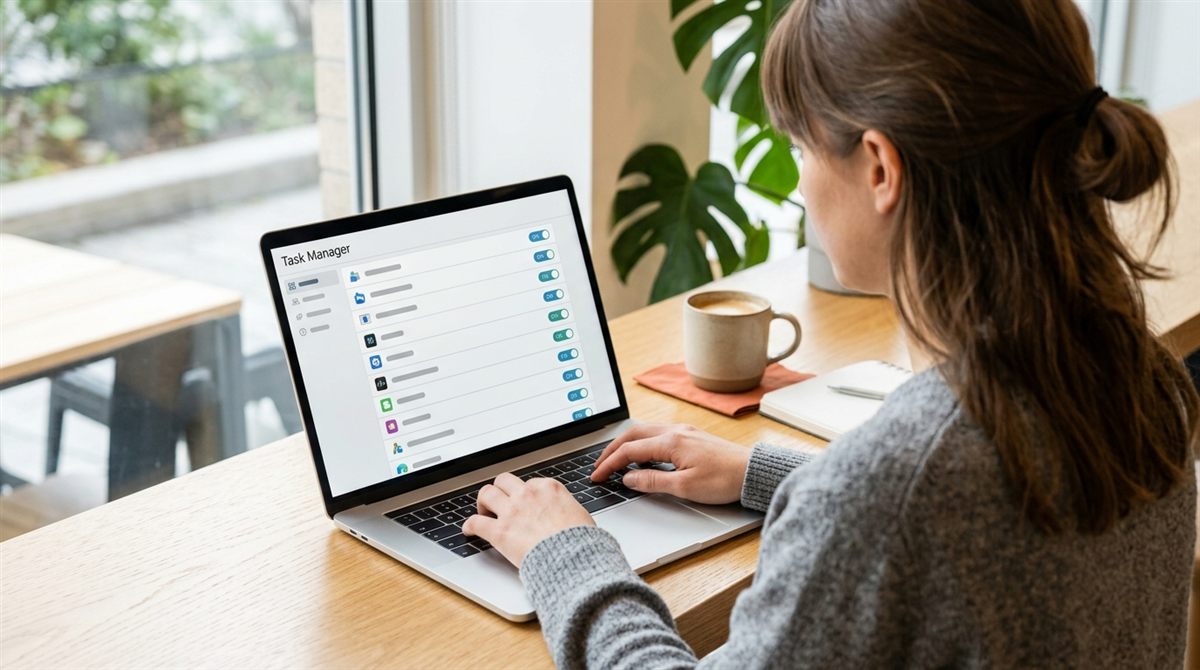
Method 2: Task Manager (more detail)
- Press Ctrl + Shift + Esc.
- Click Startup apps (the speedometer icon).
- Right-click a program → Disable. Right-click → Search online if you don’t recognise one.
Disabling doesn’t uninstall anything. The app still works when you open it, and you can re-enable it any time.
Usually safe to disable
- Game launchers: Steam, Epic Games, EA app, Ubisoft Connect, Battle.net
- Chat and meeting apps: Discord, Zoom, Skype, Spotify (open them when you need them)
- Updaters and helpers: Adobe updaters, Java Update Scheduler, Microsoft Edge “startup boost” (in Edge settings)
- Cloud apps you don’t use: Dropbox, Google Drive, iCloud, if you don’t need them syncing all the time
- Manufacturer extras: promotional apps, trial software, “PC optimisers”
- Peripheral software: RGB lighting control (unless you want lighting effects at boot)
Keep these enabled
- Windows Security / your antivirus
- Audio and touchpad drivers (Realtek, Synaptics, ELAN, Dolby): these can control function keys and audio features
- Graphics control panels on gaming laptops (NVIDIA, AMD, Intel)
- OneDrive, if you rely on it to back up your files
- Your laptop’s control app (Lenovo Vantage, MyASUS, Armoury Crate), which often manages fan modes, battery charge limits and hotkeys
Use Task Manager to find what’s slowing you down right now
- In Task Manager, click Processes and sort by CPU, Memory or Disk.
- Anything using lots of resources while you’re idle is worth investigating. Right-click → End task to stop it now.
- The Performance tab shows whether you’re constantly short of memory, a sign you need more RAM. See how much RAM you need.
- Right-click any background app → Efficiency mode to give it lower priority.
Mac: login items
Open System Settings → General → Login Items & Extensions. Remove apps under “Open at Login” you don’t need, and review “Allow in the Background”.
Next steps: more ways to speed up a slow laptop · free up disk space