Short answer: yes, Disk Cleanup and its modern replacement in Settings are safe. They only remove files Windows can rebuild or doesn’t need. There are just two checkboxes to be careful with: Downloads (it deletes your personal Downloads folder) and Previous Windows installation(s) (it removes your ability to roll back a major update). Here’s how to check your storage and free up space safely.
In this article
Step 1: See what’s using your space
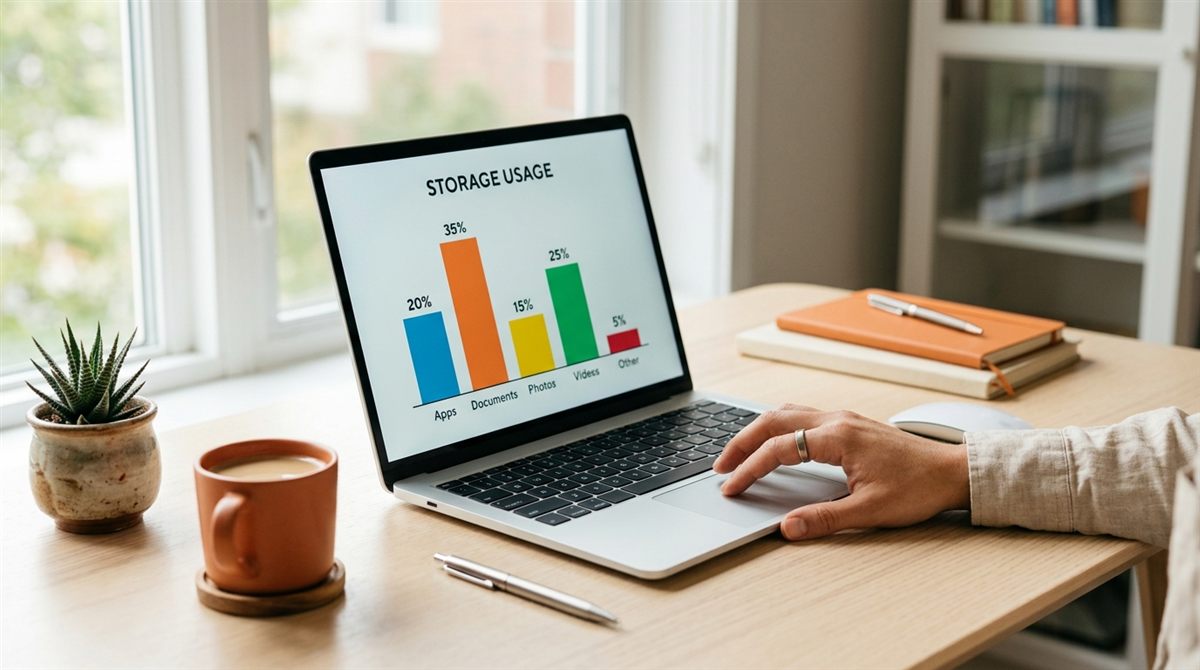
- Windows 11/10: Settings → System → Storage. You’ll see a breakdown by category (Apps, Temporary files, Documents, Pictures, Other). Click any category for details.
- Quick check: open File Explorer → This PC to see free space on each drive.
- Find big folders: free tools like WizTree or WinDirStat show a visual map of what’s taking up space. They’re great for finding forgotten videos, old game installs and huge downloads.
- Mac: System Settings → General → Storage.
Keep at least 10–15% of your drive free. SSDs and Windows Update both slow down or fail when the drive is nearly full.
Step 2: Clean temporary files (safe)
The modern way: Settings
- Settings → System → Storage → Temporary files.
- Windows scans and lists categories with sizes.
- Tick the safe ones: Windows Update Cleanup, Temporary files, Delivery Optimization Files, Thumbnails, Temporary Internet Files, DirectX Shader Cache, Recycle Bin (only after checking it).
- Untick Downloads unless you’ve checked that folder.
- Click Remove files.
The classic way: Disk Cleanup
Search Start for Disk Cleanup, choose your C: drive, then click Clean up system files to include Windows Update leftovers. The same advice applies: avoid Downloads, and only remove “Previous Windows installation(s)” once you’re happy with a recent major update (Windows deletes them automatically after 10 days anyway).
Step 3: Turn on Storage Sense
Settings → System → Storage → Storage Sense. Turn it on to automatically empty the Recycle Bin and remove temporary files on a schedule. You can also have it make OneDrive files “online-only” if unused for a while. They stay visible and download when you open them.
Step 4: Bigger wins
- Uninstall apps and games you don’t use: Settings → Apps → Installed apps → sort by size. Games are often 50–150GB each.
- Move photos and videos to a portable SSD or cloud storage.
- Clear old phone backups (iTunes/Apple Devices backups can be tens of GB).
- Check the Downloads folder for old installers and ZIP files.
- Disable hibernation only if you never use it: run
powercfg /h offin an admin Terminal to recover a file roughly the size of your RAM. Note that this also disables Fast Startup.
Does cleaning up make a laptop faster?
Only if the drive was nearly full. Freeing space on a drive with plenty already free won’t speed anything up. For real performance gains, see how to speed up a slow laptop and which startup programs to disable.
Avoid “PC cleaner” apps
Paid “registry cleaners” and “PC optimisers” don’t make Windows faster, and some delete things they shouldn’t or bundle adware. Windows’ built-in tools do everything that’s actually useful.
Still running out of space?
If your laptop has a small 128–256GB drive, the real fix is more storage. Many Windows laptops can take a bigger internal SSD. See how to upgrade a laptop SSD.